
Introduction
This guide explains how to set up web forwarding and email forwarding for a domain in your Hosting Ireland Client Area.
Web forwarding sends visitors from your domain to another website address. For example, you could forward:
yourdomain.ie
to
https://example.com
Email forwarding sends messages from an email address at your domain to another email address. For example, you could forward:
info@yourdomain.ie
to
yourname@gmail.com
Before you start
You will need access to your Hosting Ireland Client Area.
For help logging in, see:
How to access your Client Area
Important: Your domain must be pointing to the correct forwarding server before web or email forwarding will work.
If you see a warning saying your domain is not currently pointing to our forwarding server, you will need to update the DNS for the domain.
For help with DNS changes, see:
How to manage DNS records for your domain
The forwarding server shown in the Client Area is:
185.43.232.251
If you are unsure whether changing DNS will affect your website or email, please contact support before making changes.
Step One
Log in to your Hosting Ireland Client Area.
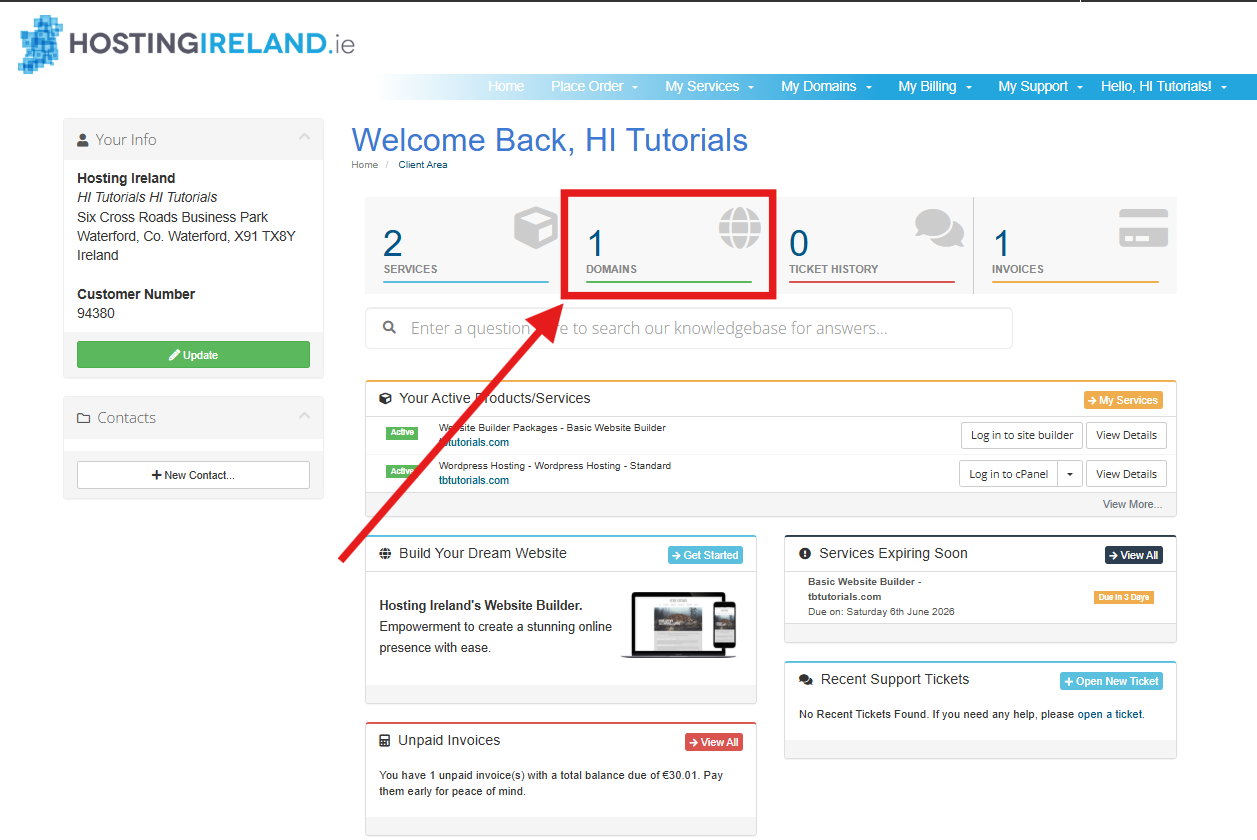
On the Client Area dashboard, select Domains.
Step Two
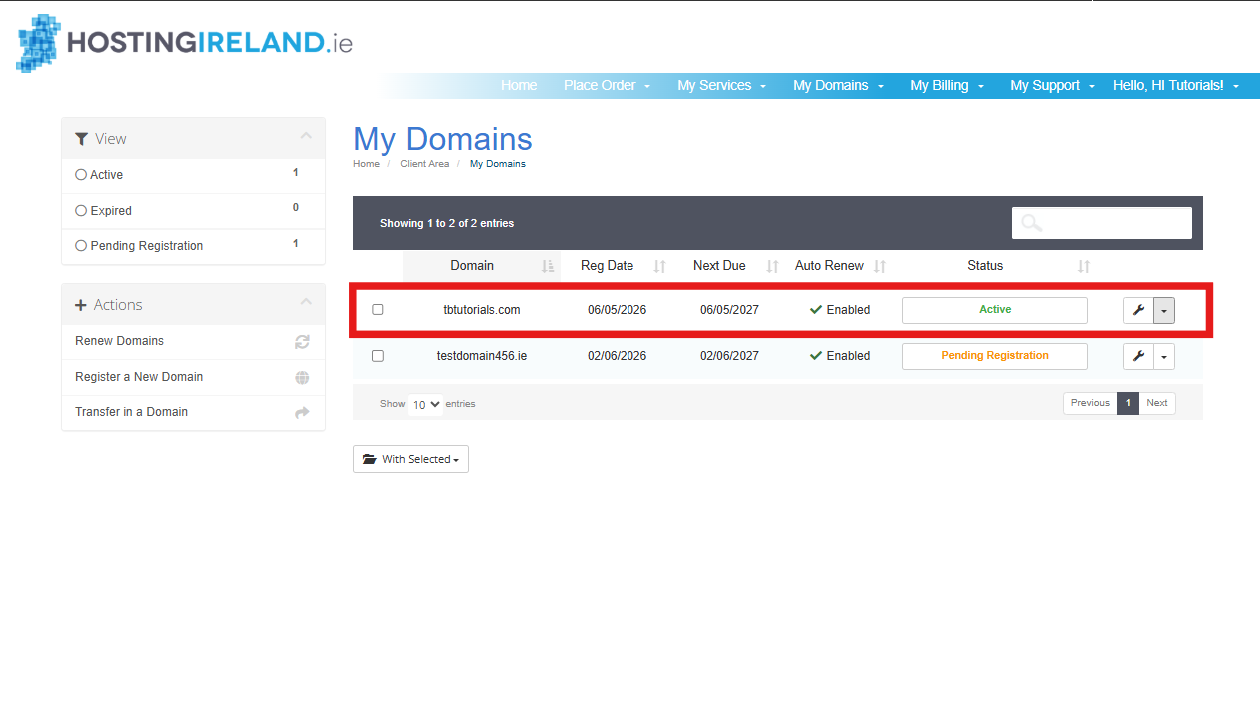
On the My Domains page, find the domain you want to manage.
Click the domain name, or use the manage option beside the domain.
Make sure you select the correct domain before continuing.
Step Three
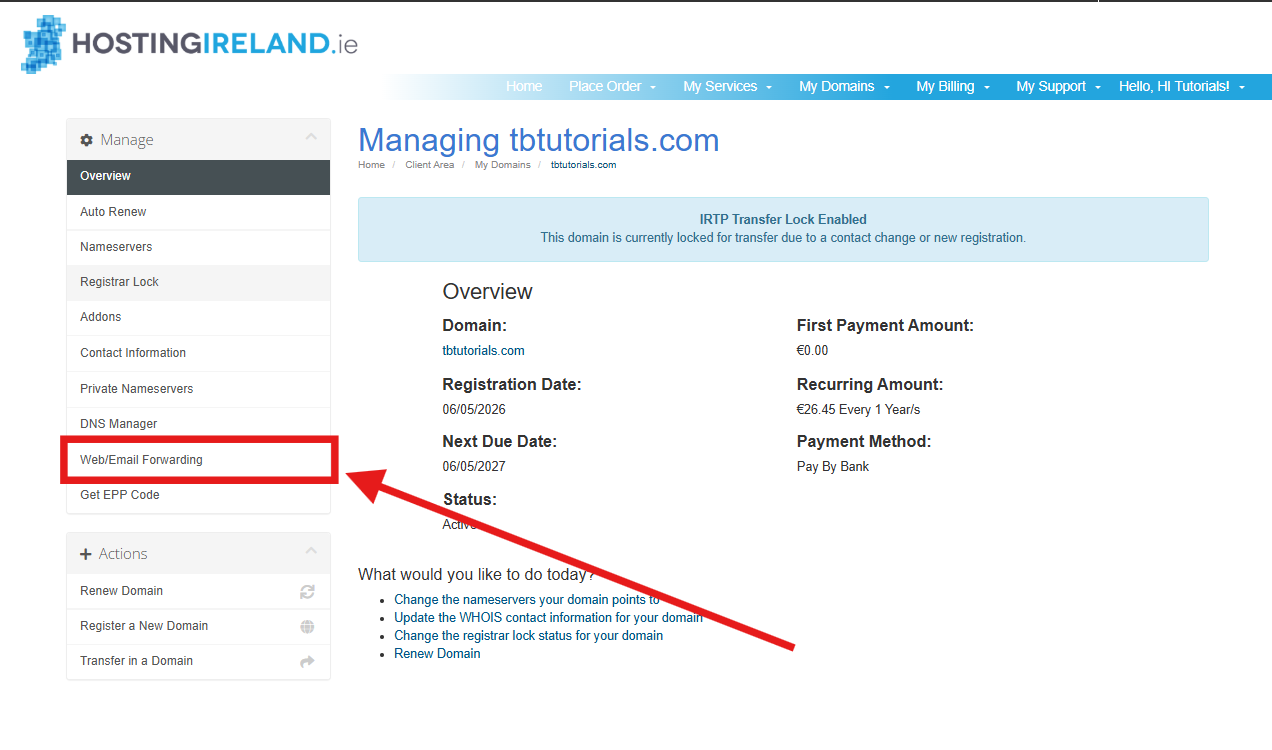
On the left-hand menu, select Web/Email Forwarding.
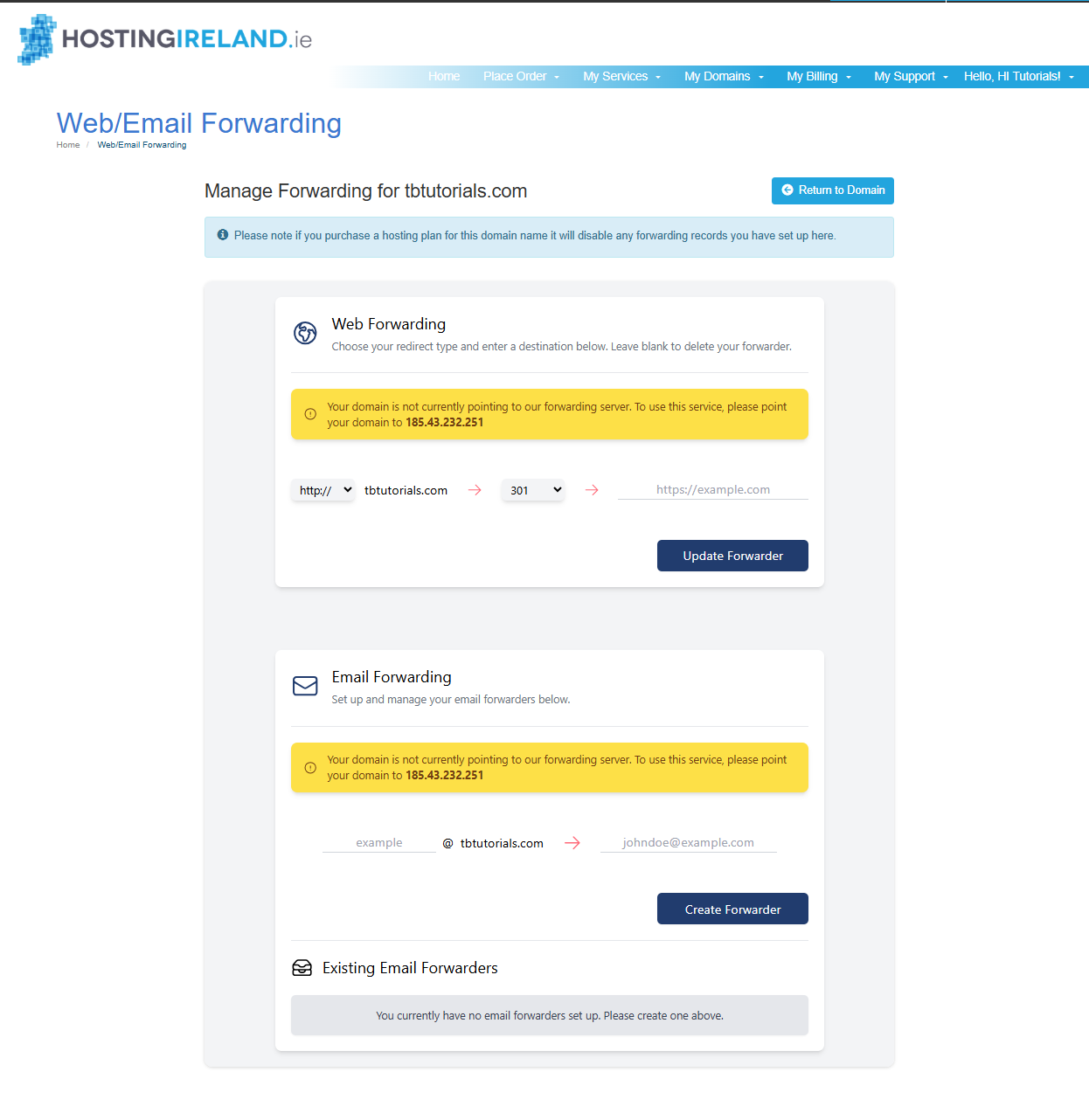
You will now see the forwarding options for your domain.
This page contains two sections:
Web Forwarding
Used to forward your domain to another website address.
Email Forwarding
Used to forward email sent to your domain to another email address.
How to set up web forwarding
Use this option if you want visitors to your domain to be redirected to another website.
For example:
yourdomain.ie
to
https://example.com
Step One
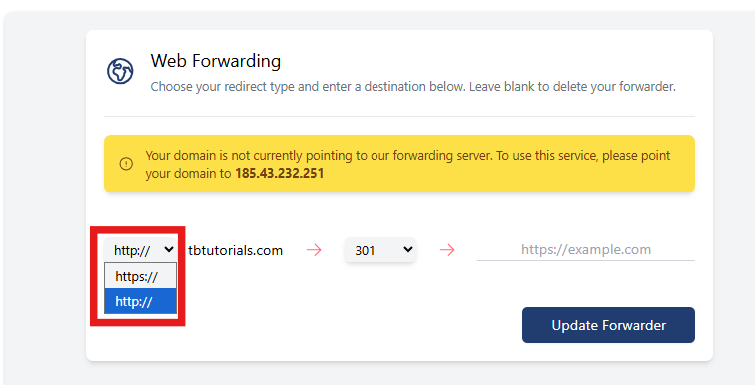
In the Web Forwarding section, choose whether the forwarding should apply to:
http://
or
https://
We recommend setting up forwarding for both versions where possible, so visitors are redirected whether they type the secure or non-secure version of the address.
Step Two
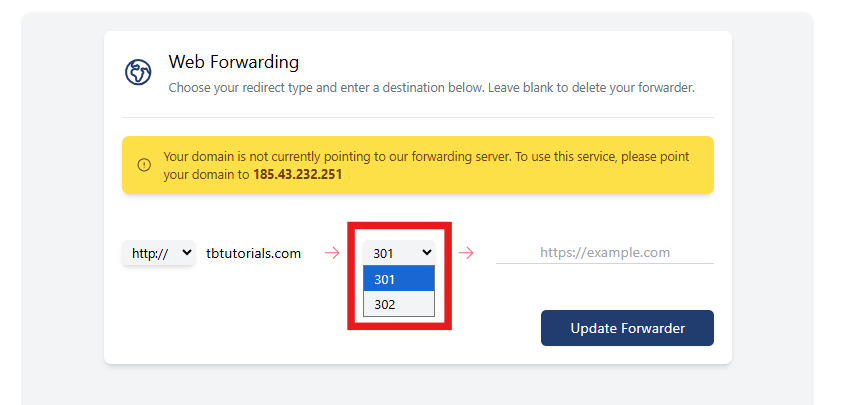
Choose the redirect type.
In most cases, you should use:
301
A 301 redirect is a permanent redirect. This is best when the domain should always send visitors to the new website address.
You may also see:
302
A 302 redirect is a temporary redirect. This is normally used when the forwarding is only needed for a short time, or when you may remove or change the redirect later.
For most domain forwarding, we recommend using 301 unless you specifically need the redirect to be temporary.
Step Three
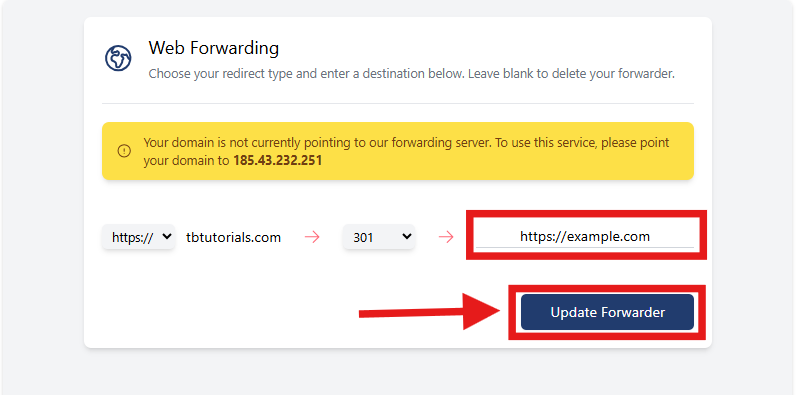
Enter the destination website address.
For example:
Make sure the destination address is correct before saving.
Step Four
Select Update Forwarder.
Your web forwarding rule will now be saved.
DNS changes and forwarding changes may take time to apply. In many cases this is within a few hours, but it can take up to 24 hours depending on DNS caching.
How to set up email forwarding
Use this option if you want email sent to an address at your domain to be forwarded to another email address.
For example:
info@yourdomain.ie
to
yourname@gmail.com
Step One
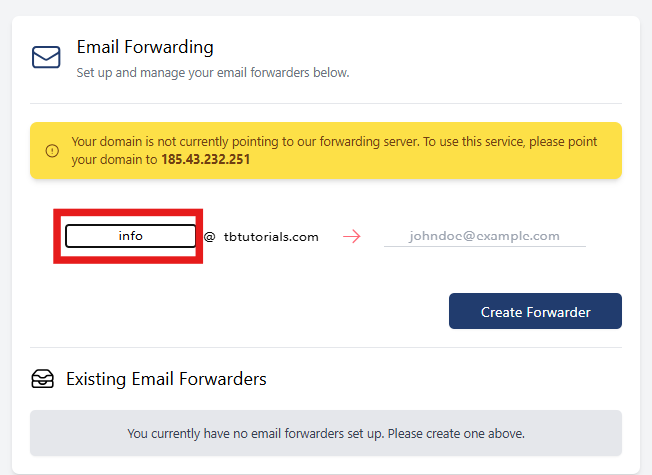
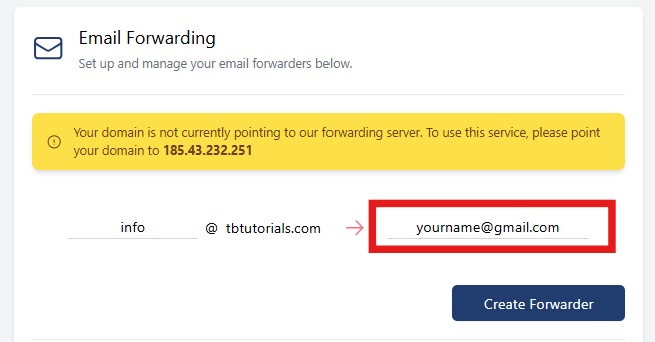
In the Email Forwarding section, enter the part of the email address before the @ symbol.
For example, to create:
info@yourdomain.ie
enter:
info
Step Two
Enter the destination email address.
For example:
yourname@gmail.com
This is where forwarded messages will be sent.
Step Three
Select Create Forwarder.
The email forwarder will now be created.
Existing email forwarders
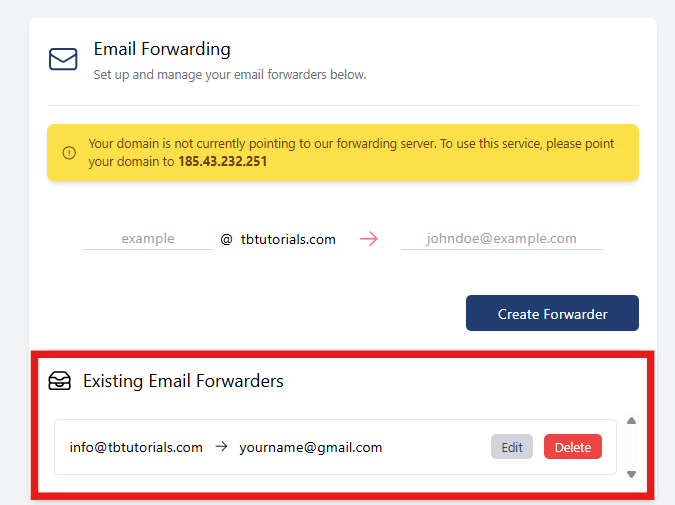
Any existing email forwarders will appear in the Existing Email Forwarders section.
From here, you can review which forwarders are already set up for the domain.
Important DNS notes
If the page shows a warning that your domain is not pointing to the forwarding server, forwarding will not work until the DNS has been updated.
The forwarding server is:
185.43.232.251
Changing DNS can affect your website, email or other services connected to the domain.
If your domain is already connected to a hosting package, website builder, Shopify, Wix, Squarespace, Google Sites, Microsoft 365, Google Workspace or another external provider, check what the DNS change will affect before updating it.
Important: If you purchase a hosting plan for this domain, this may disable any forwarding records you have set up here.
Need more help?
If you have any further questions, please raise a support request from your Client Area or call us on 01 9020020.

'%3e%3cg id='Final-Copy-2_2_' transform='translate(1275.000000, 200.000000)'%3e%3cpath class='st0' d='M7.4,12.8h6.8l3.1-11.6H7.4C4.2,1.2,1.6,3.8,1.6,7S4.2,12.8,7.4,12.8z'/%3e%3c/g%3e%3c/g%3e%3c/g%3e%3cg id='final---dec.11-2020'%3e%3cg id='_x30_208-our-toggle' transform='translate(-1275.000000, -200.000000)'%3e%3cg id='Final-Copy-2' transform='translate(1275.000000, 200.000000)'%3e%3cpath class='st1' d='M22.6,0H7.4c-3.9,0-7,3.1-7,7s3.1,7,7,7h15.2c3.9,0,7-3.1,7-7S26.4,0,22.6,0z M1.6,7c0-3.2,2.6-5.8,5.8-5.8 h9.9l-3.1,11.6H7.4C4.2,12.8,1.6,10.2,1.6,7z'/%3e%3cpath id='x' class='st2' d='M24.6,4c0.2,0.2,0.2,0.6,0,0.8l0,0L22.5,7l2.2,2.2c0.2,0.2,0.2,0.6,0,0.8c-0.2,0.2-0.6,0.2-0.8,0 l0,0l-2.2-2.2L19.5,10c-0.2,0.2-0.6,0.2-0.8,0c-0.2-0.2-0.2-0.6,0-0.8l0,0L20.8,7l-2.2-2.2c-0.2-0.2-0.2-0.6,0-0.8 c0.2-0.2,0.6-0.2,0.8,0l0,0l2.2,2.2L23.8,4C24,3.8,24.4,3.8,24.6,4z'/%3e%3cpath id='y' class='st3' d='M12.7,4.1c0.2,0.2,0.3,0.6,0.1,0.8l0,0L8.6,9.8C8.5,9.9,8.4,10,8.3,10c-0.2,0.1-0.5,0.1-0.7-0.1l0,0 L5.4,7.7c-0.2-0.2-0.2-0.6,0-0.8c0.2-0.2,0.6-0.2,0.8,0l0,0L8,8.6l3.8-4.5C12,3.9,12.4,3.9,12.7,4.1z'/%3e%3c/g%3e%3c/g%3e%3c/g%3e%3c/g%3e%3c/svg%3e) Your Privacy Choices
Your Privacy Choices