
Introduction
This guide explains how to manage DNS records through Zone Editor in cPanel.
DNS records control how your domain connects to services such as websites, email, verification tools and third-party platforms. For example, you may need to add DNS records for Microsoft 365, Google Workspace, Shopify, Wix, Squarespace, Mailchimp, or another external provider.
This guide is for customers with a Hosting Ireland hosting package that includes cPanel access.
If you only have a domain name and do not have a hosting package with cPanel access, you can manage DNS records through your Hosting Ireland Client Area instead.
Before you start
You will need:
- Access to your Hosting Ireland Client Area.
- An active Hosting Ireland hosting package with cPanel access.
- The domain name you want to manage.
- The DNS record details you want to add or change.
If you do not know how to log in to your Client Area, please follow this guide first:
How to access your Client Area
If you only have a domain name and do not have a hosting package with cPanel access, please use this guide instead:
How to manage DNS records in the Hosting Ireland Client Area
Before making DNS changes, make sure you have the full record details from your provider. These may include:
- Record type
- Name or host
- Value, record, target or destination
- TTL
- Priority, if required
Make sure your domain is using the correct nameservers
DNS records only work from the DNS provider your domain is currently using.
In cPanel Zone Editor, the nameservers for the zone are shown near the top of the DNS records page.
For Hosting Ireland cPanel hosting, these will usually look similar to:
- ns1.webhostingireland.ie
- ns2.webhostingireland.ie
- ns3.webhostingireland.ie
- ns4.webhostingireland.eu
If your domain is using these nameservers, DNS changes made in cPanel Zone Editor should apply to your live domain.
If your domain is using external nameservers, such as Cloudflare, Shopify, Wix, Squarespace, Webflow, Vercel, Microsoft, Google, or another provider, DNS records usually need to be changed with that provider instead.
If your domain also has Hosting Ireland hosting, you may also be able to manage the same DNS records through the Hosting Ireland Client Area.
Important:
Changing DNS records can affect your website, email, SSL certificate, or third-party services.
If you change MX records, this can affect where email is delivered for your domain.
Step One
Log in to your Hosting Ireland Client Area.
For a full walkthrough, see:
How to access your Client Area
Step Two
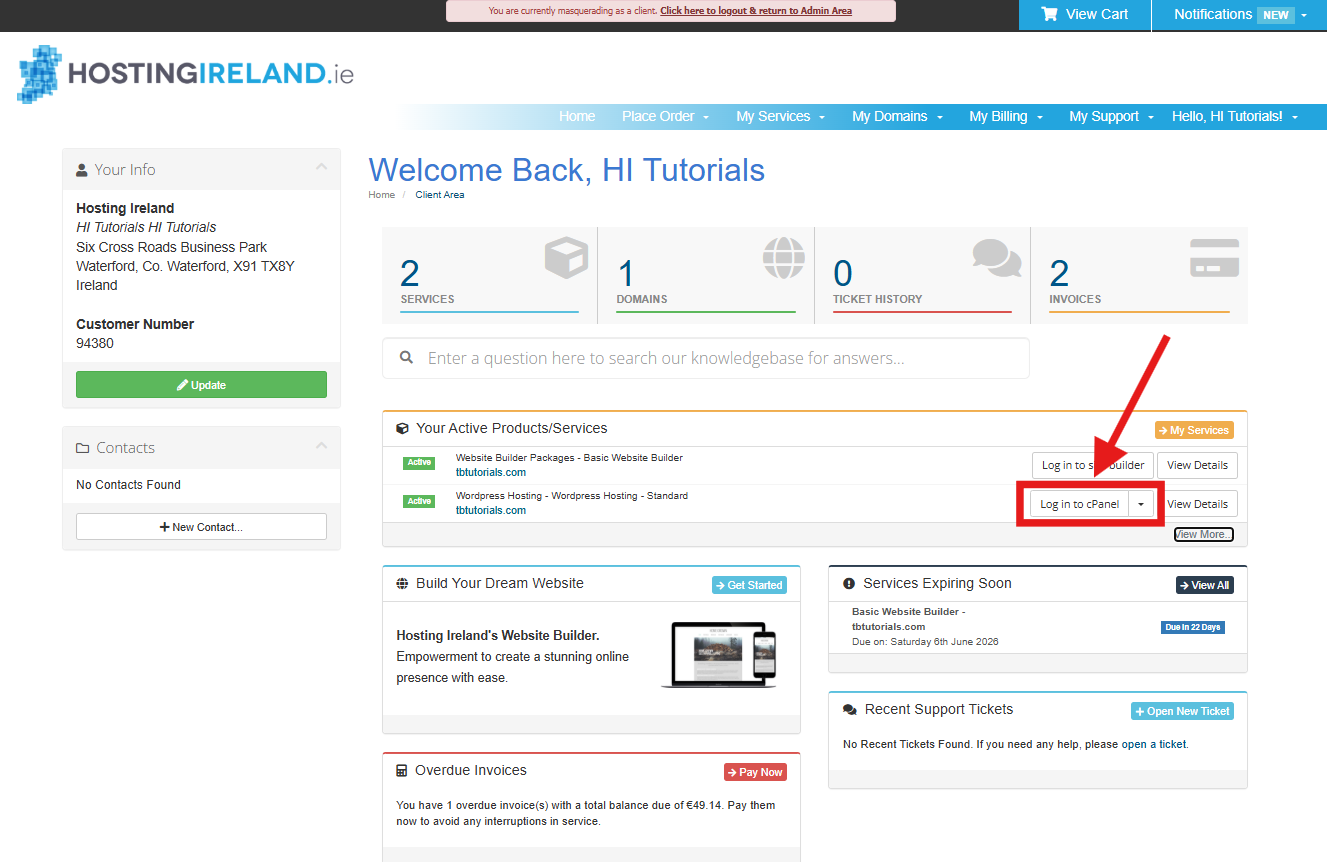
From your Client Area dashboard, go to Your Active Products/Services.
Find the hosting package you want to manage, then select Log in to cPanel.
Step Three
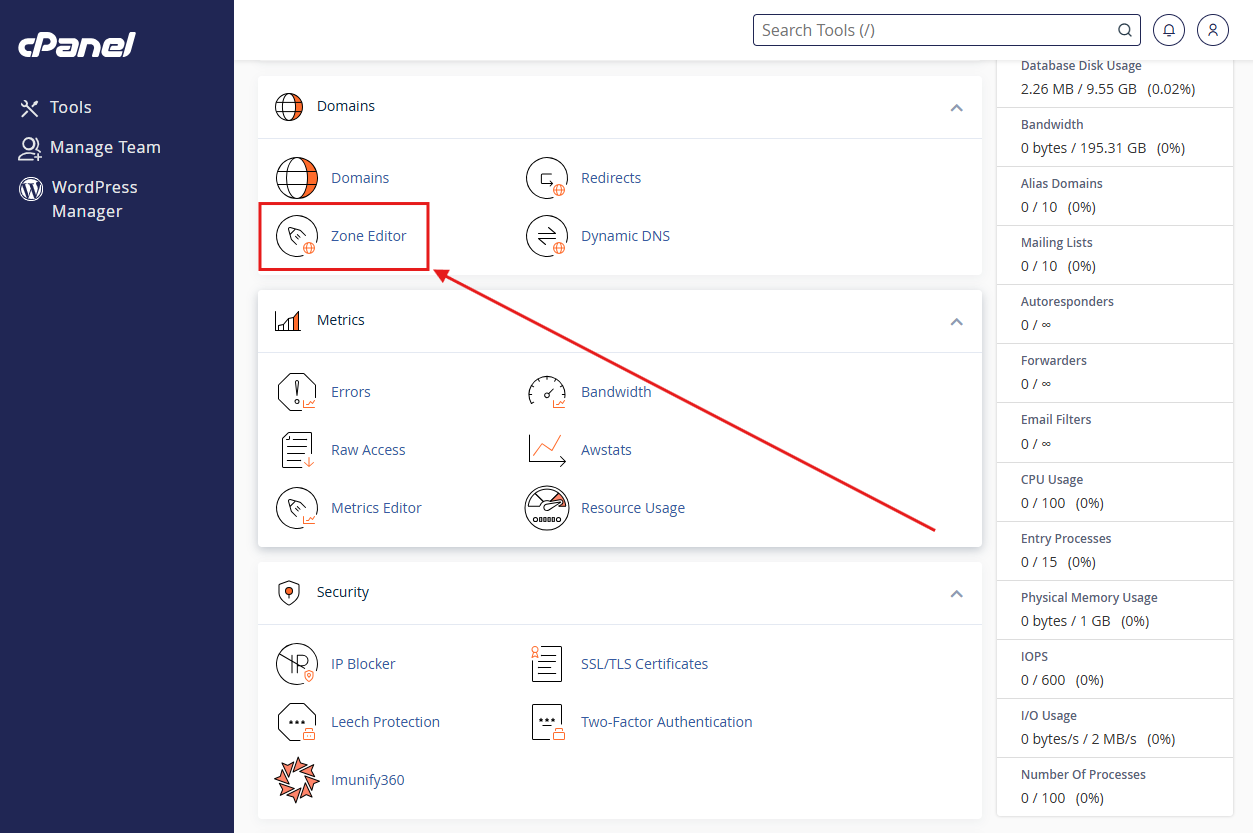
Once cPanel opens, go to the Domains section and select Zone Editor.
Step Four
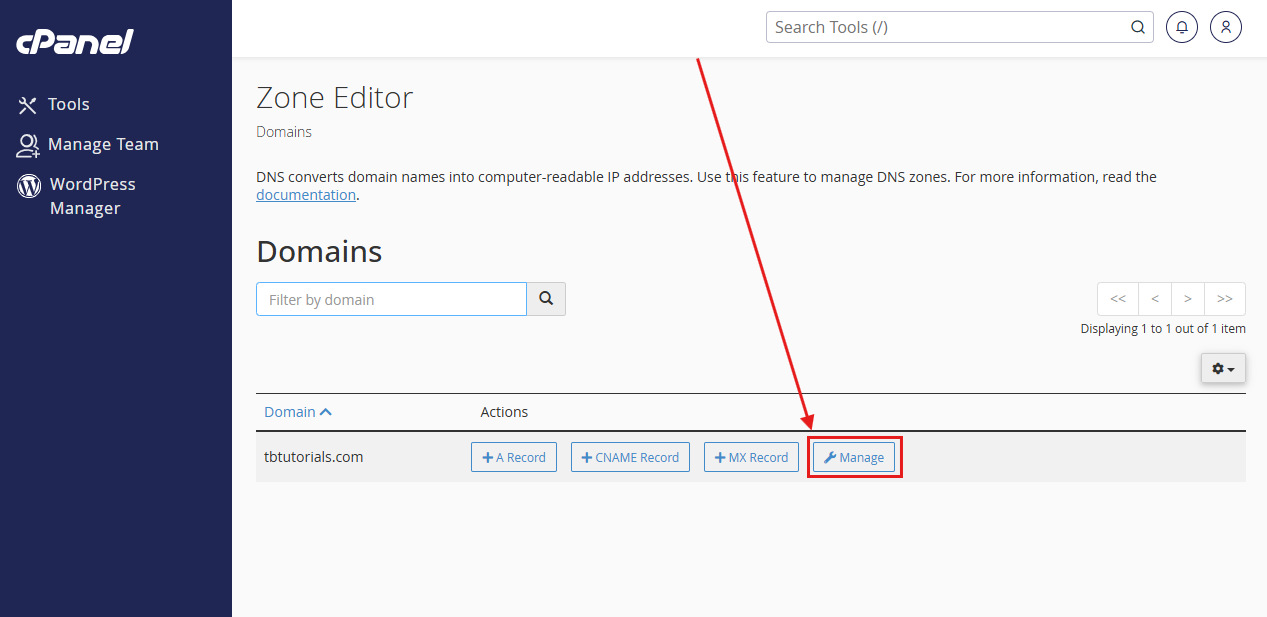
You will now see a list of domains available in Zone Editor.
Find the domain you want to manage, then select Manage.
Step Five
You will now see the DNS records for that domain.
At the top of the page, cPanel shows the configured nameservers for the zone. These are the nameservers your domain should use if you want this cPanel DNS zone to control your live DNS records.
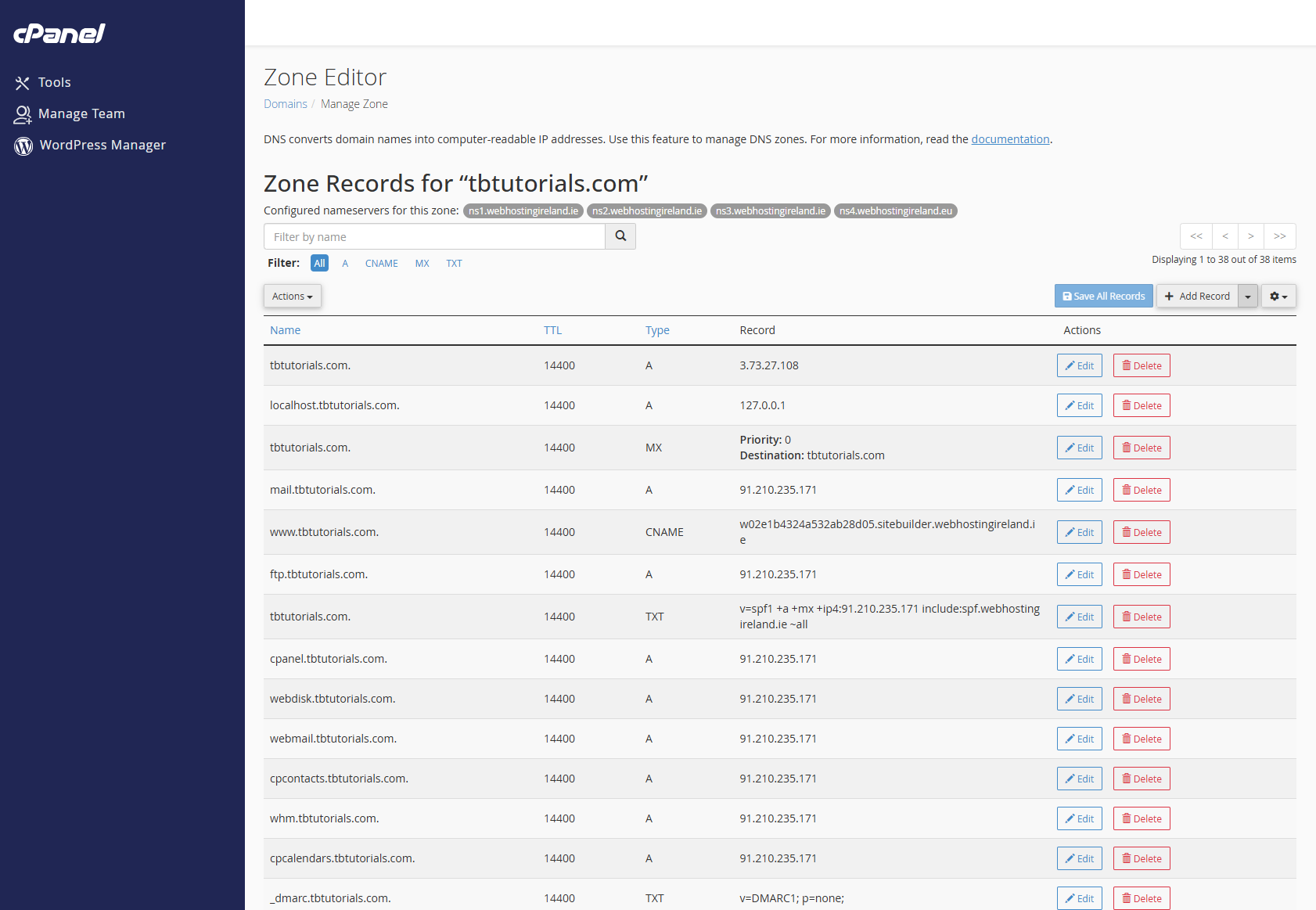
This page lets you:
- View existing DNS records.
- Add new DNS records.
- Edit existing DNS records.
- Delete records that are no longer needed.
You can also use the filter options to show only certain record types, such as:
- A
- CNAME
- MX
- TXT
Step Six
To add a new DNS record, select Add Record.
You may then be asked to choose the type of record you want to add.
You will normally need to complete the following fields.
Name
Enter the name or host for the DNS record.
For the main or root domain, your provider may show this as:
- @
- your full domain name
- a blank name field
For a subdomain, your provider may give you just the subdomain part, such as:
- www
- shop
- _dmarc
Enter the record name exactly as supplied by your provider.
TTL
This controls how long other systems should cache the record.
If your provider has not given you a TTL, you can usually leave the default value.
Type
Select the type of DNS record you need to add.
Common types include:
- A
- CNAME
- MX
- TXT
Record
Enter the value, target or destination supplied by your provider.
If you are adding an MX record, you may also need to enter a Priority value.
Once the details have been entered, save the new record.
Step Seven
To edit an existing DNS record, find the record in the list and select Edit.
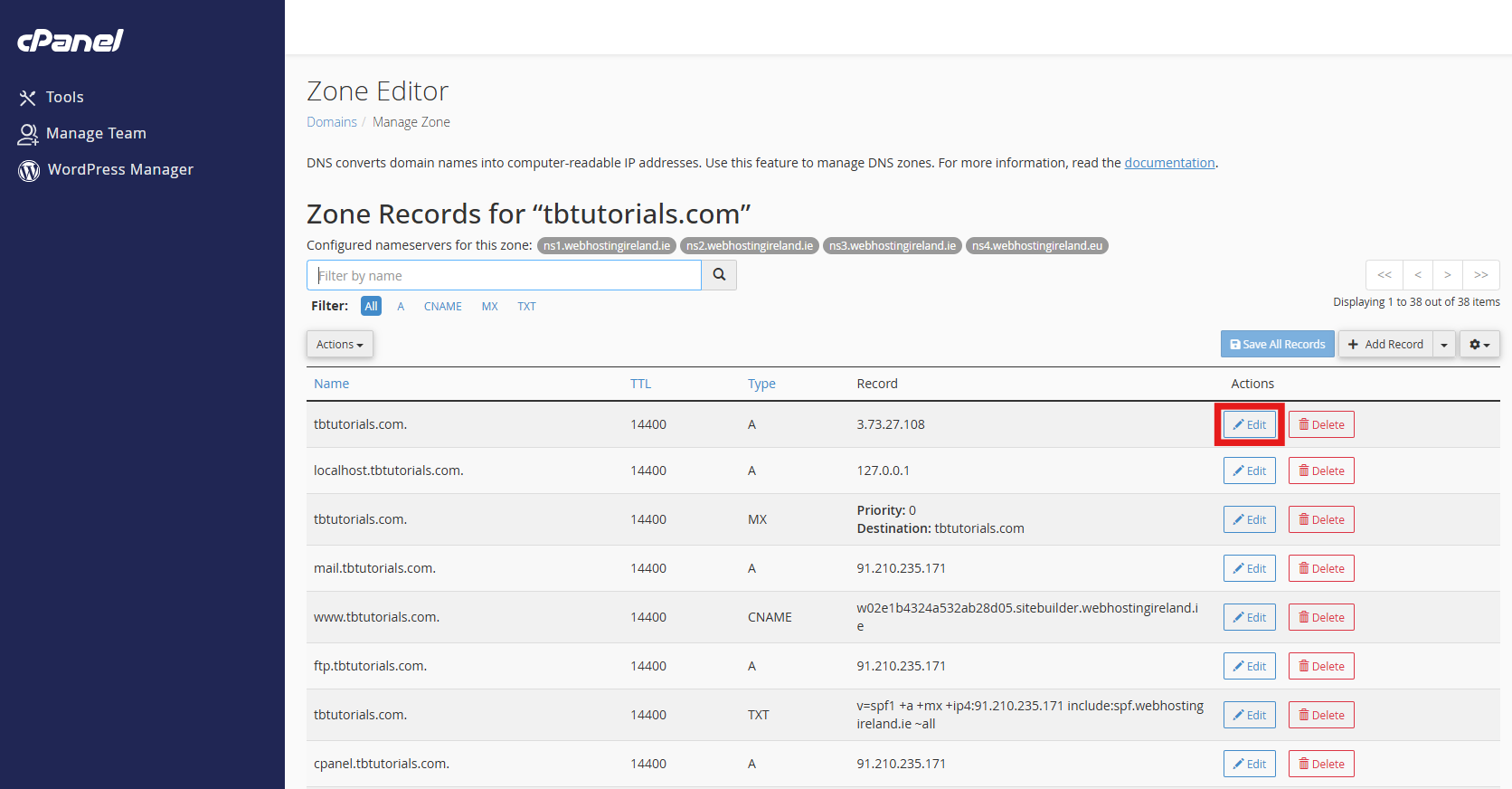
Make the required change, then save the record.
You may need to edit a record if you are:
- Changing the IP address your website points to.
- Updating a CNAME target.
- Changing email provider.
- Adding or correcting a verification record.
- Updating an SPF, DKIM or DMARC TXT record.
Make sure you only change the record you intend to update.
Step Eight
To remove a DNS record, find the record in the list and select Delete.
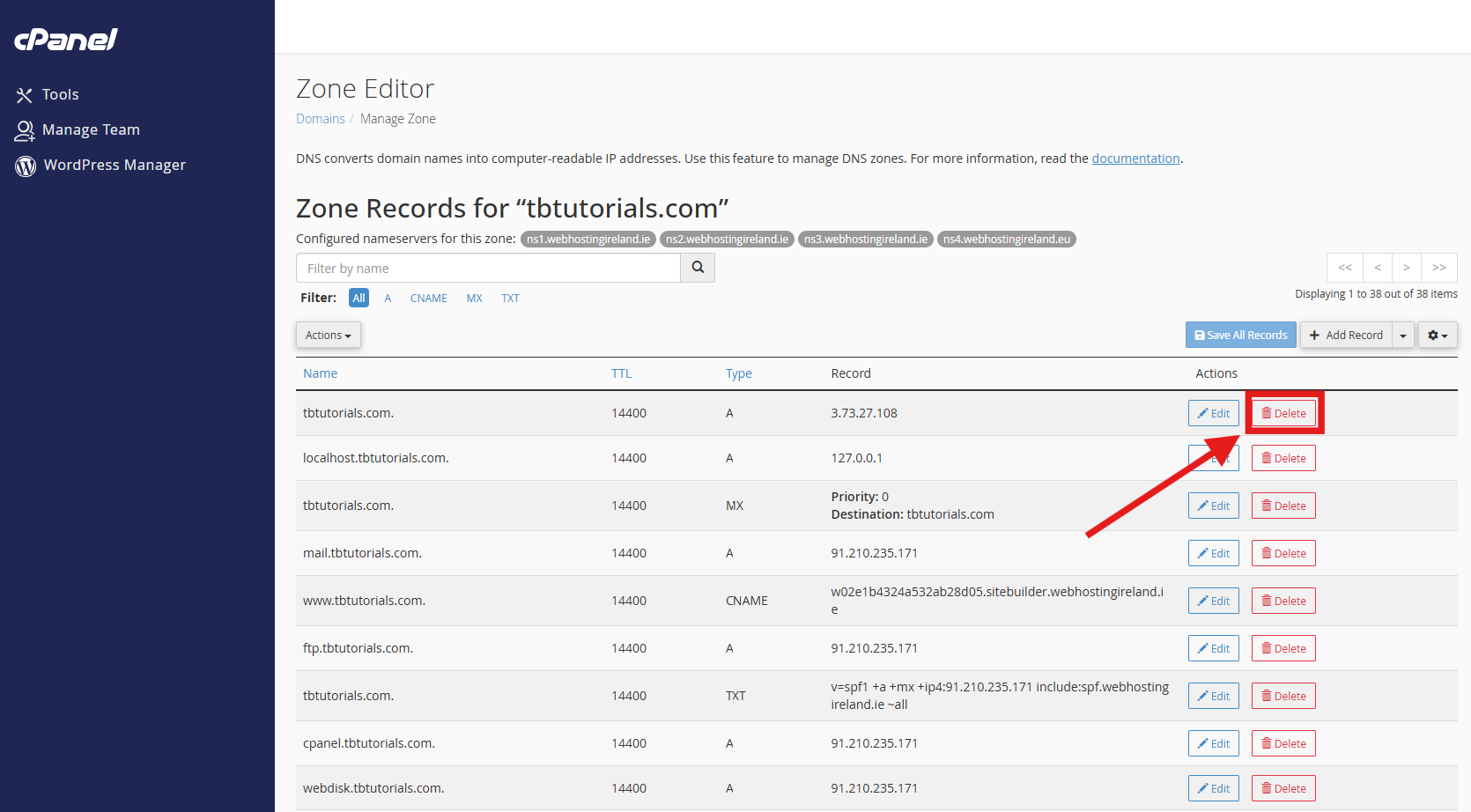
Only delete a record if you are sure it is no longer needed.
Deleting the wrong DNS record can stop your website, email, verification, or another connected service from working correctly.
Common DNS record types
A record
An A record points a domain or subdomain to an IP address.
This is commonly used when a website provider gives you an IP address to point your domain to.
CNAME record
A CNAME record points one hostname to another hostname.
This is commonly used for www records, third-party website platforms, or verification records.
MX record
An MX record controls where email for your domain is delivered.
This is commonly used when connecting your domain to Hosting Ireland email, Microsoft 365, Google Workspace, or another email provider.
Important:
Do not change MX records unless you intend to change where email is delivered for your domain.
TXT record
A TXT record stores text information against your domain.
TXT records are commonly used for:
- Domain verification
- SPF
- DKIM
- DMARC
- Third-party service checks
SPF, DKIM and DMARC are email authentication settings that are usually added as TXT records.
They help receiving mail servers check whether messages sent from your domain are genuine.
These records do not usually control where email is delivered. However, incorrect or duplicated TXT records can still cause email delivery problems.
When adding a TXT record, copy the full value exactly as supplied by your email provider or third-party service.
If your DNS changes do not work
If your DNS changes do not appear to be working, check the following:
- Make sure the record was entered exactly as supplied by your provider.
- Make sure you selected the correct domain in cPanel.
- Make sure your domain is using the nameservers shown at the top of the Zone Editor page.
- If your domain uses external nameservers, update the DNS records with that external DNS provider instead.
- Check whether your provider asked for the record to be added to the root domain or to a subdomain.
- Allow time for DNS propagation.
DNS changes can take time to update across the internet. In many cases they begin updating within a few hours, but full propagation can take up to 24 hours.
Need more help?
If you have any further questions, please raise a support request from your Client Area or call us on 01 9020020.

'%3e%3cg id='Final-Copy-2_2_' transform='translate(1275.000000, 200.000000)'%3e%3cpath class='st0' d='M7.4,12.8h6.8l3.1-11.6H7.4C4.2,1.2,1.6,3.8,1.6,7S4.2,12.8,7.4,12.8z'/%3e%3c/g%3e%3c/g%3e%3c/g%3e%3cg id='final---dec.11-2020'%3e%3cg id='_x30_208-our-toggle' transform='translate(-1275.000000, -200.000000)'%3e%3cg id='Final-Copy-2' transform='translate(1275.000000, 200.000000)'%3e%3cpath class='st1' d='M22.6,0H7.4c-3.9,0-7,3.1-7,7s3.1,7,7,7h15.2c3.9,0,7-3.1,7-7S26.4,0,22.6,0z M1.6,7c0-3.2,2.6-5.8,5.8-5.8 h9.9l-3.1,11.6H7.4C4.2,12.8,1.6,10.2,1.6,7z'/%3e%3cpath id='x' class='st2' d='M24.6,4c0.2,0.2,0.2,0.6,0,0.8l0,0L22.5,7l2.2,2.2c0.2,0.2,0.2,0.6,0,0.8c-0.2,0.2-0.6,0.2-0.8,0 l0,0l-2.2-2.2L19.5,10c-0.2,0.2-0.6,0.2-0.8,0c-0.2-0.2-0.2-0.6,0-0.8l0,0L20.8,7l-2.2-2.2c-0.2-0.2-0.2-0.6,0-0.8 c0.2-0.2,0.6-0.2,0.8,0l0,0l2.2,2.2L23.8,4C24,3.8,24.4,3.8,24.6,4z'/%3e%3cpath id='y' class='st3' d='M12.7,4.1c0.2,0.2,0.3,0.6,0.1,0.8l0,0L8.6,9.8C8.5,9.9,8.4,10,8.3,10c-0.2,0.1-0.5,0.1-0.7-0.1l0,0 L5.4,7.7c-0.2-0.2-0.2-0.6,0-0.8c0.2-0.2,0.6-0.2,0.8,0l0,0L8,8.6l3.8-4.5C12,3.9,12.4,3.9,12.7,4.1z'/%3e%3c/g%3e%3c/g%3e%3c/g%3e%3c/g%3e%3c/svg%3e) Your Privacy Choices
Your Privacy Choices