
Introduction
This guide explains how to log in to cPanel for your Hosting Ireland hosting service.
cPanel is used to manage your hosting account, including website files, email accounts, databases, redirects, PHP settings, backups and other hosting tools.
There are two ways to access cPanel:
- Through your Hosting Ireland Client Area
- Directly through the cPanel login page
For most account holders, logging in through the Client Area is the easiest method. Direct cPanel login is useful if you want to give access to a web developer without giving them access to your full Hosting Ireland Client Area.
Before you start
You will need access to your Hosting Ireland Client Area.
For help logging in, see:
How to access your Client Area
If you want to log in directly to cPanel, you will also need:
- Your cPanel login URL
- Your cPanel username
- Your cPanel password
These details are usually included in your hosting welcome email.
Important: Your cPanel password may be different from your Hosting Ireland Client Area password, email password or WordPress password.
Option One: Log in to cPanel through your Client Area
Step One
Log in to your Hosting Ireland Client Area.
For help with this, see:
How to access your Client Area
Step Two
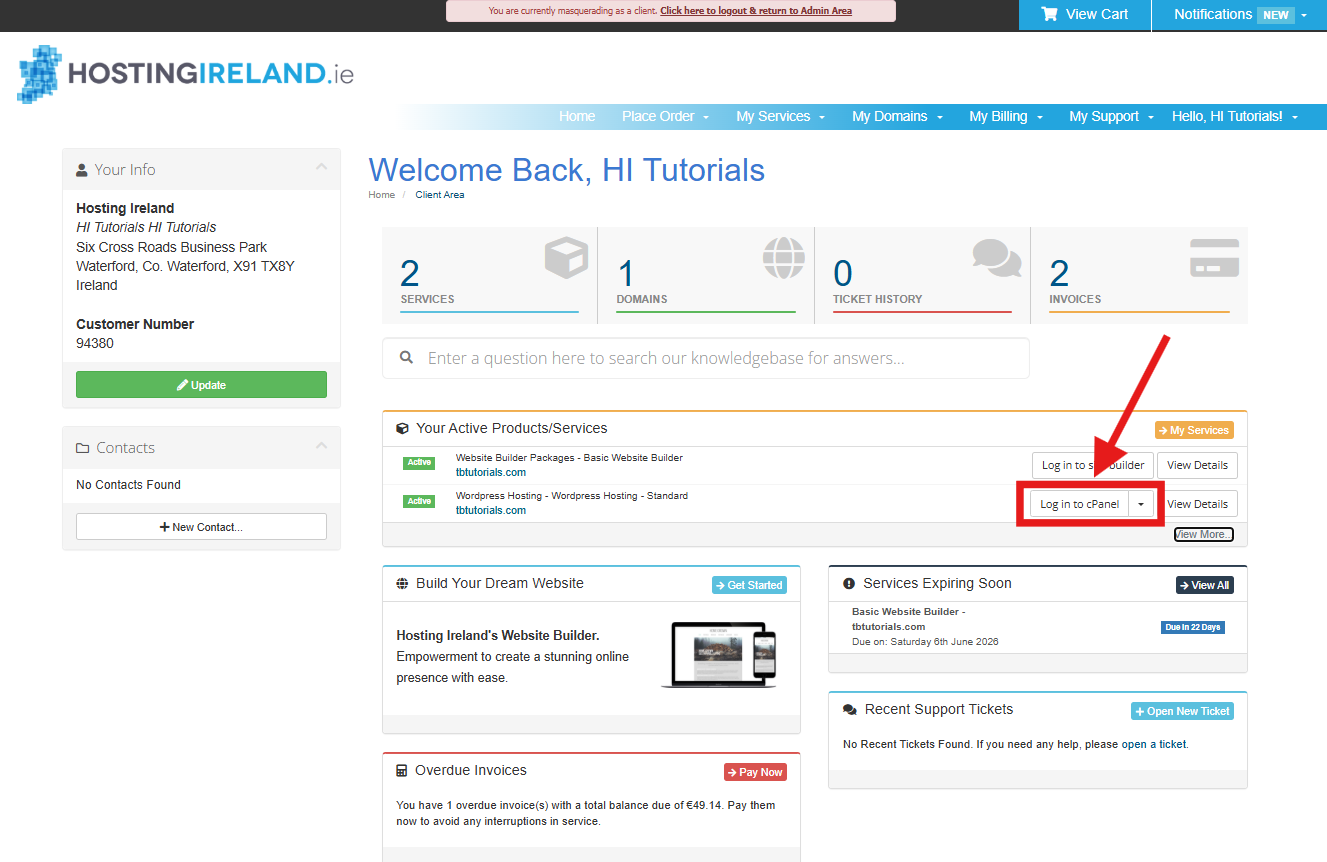
Once you are logged in, go to Your Active Products/Services.
Find the hosting service you want to manage.
Step Three
Select Log in to cPanel.
This will open cPanel for that hosting package.
You do not normally need to enter your cPanel username or password when logging in this way from the Client Area.
Step Four
You should now see the main cPanel dashboard.
From here, you can manage your hosting tools, including:
- Email Accounts
- File Manager
- Databases
- WordPress tools
- PHP settings
- Redirects
- Backups
- SSL and security tools
Option Two: Log in directly to cPanel
You can also log in directly to cPanel using the cPanel login URL, username and password from your hosting welcome email.
This can be useful if:
- You want to access cPanel quickly without logging in to the Client Area
- A web developer needs hosting access
- You do not want to give someone access to your billing, invoices, domains or support tickets
Important: cPanel access still gives broad control over your hosting account. Only share cPanel access with someone you trust.
Step One
Find your cPanel login details in your hosting welcome email.
The welcome email will usually include details similar to:
cPanel Login URL:
https://server-name.webhostingireland.ie:2083
cPanel Username:
your cPanel username
cPanel Password:
your cPanel password
The server name will depend on which hosting server your account is on. For example:
https://stanhope.webhostingireland.ie:2083/
Your welcome email may also include a shortcut such as:
yourdomain.ie/cpanel
The server-name version ending in :2083 is usually the most reliable direct login URL.
Step Two
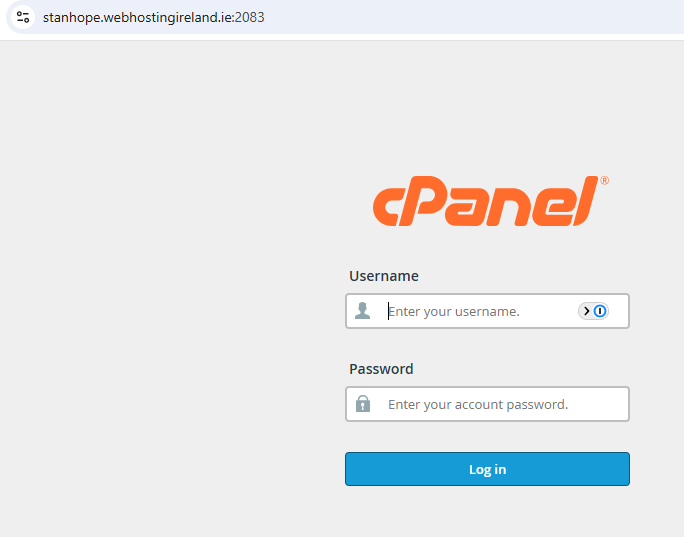
Open the cPanel login URL in your web browser.
For example:
https://stanhope.webhostingireland.ie:2083/
Step Three
Enter your cPanel username and cPanel password.
Then select Log in.
Step Four
You should now see the cPanel dashboard.
Changing your cPanel password
If you are using the original cPanel password from your welcome email, we recommend changing it to a new strong password.
This is especially important if:
- The password has been shared with a developer
- The welcome email has been forwarded
- You are unsure who has access to the password
- You have not changed the password since the hosting account was created
Step One
Log in to cPanel.
Step Two
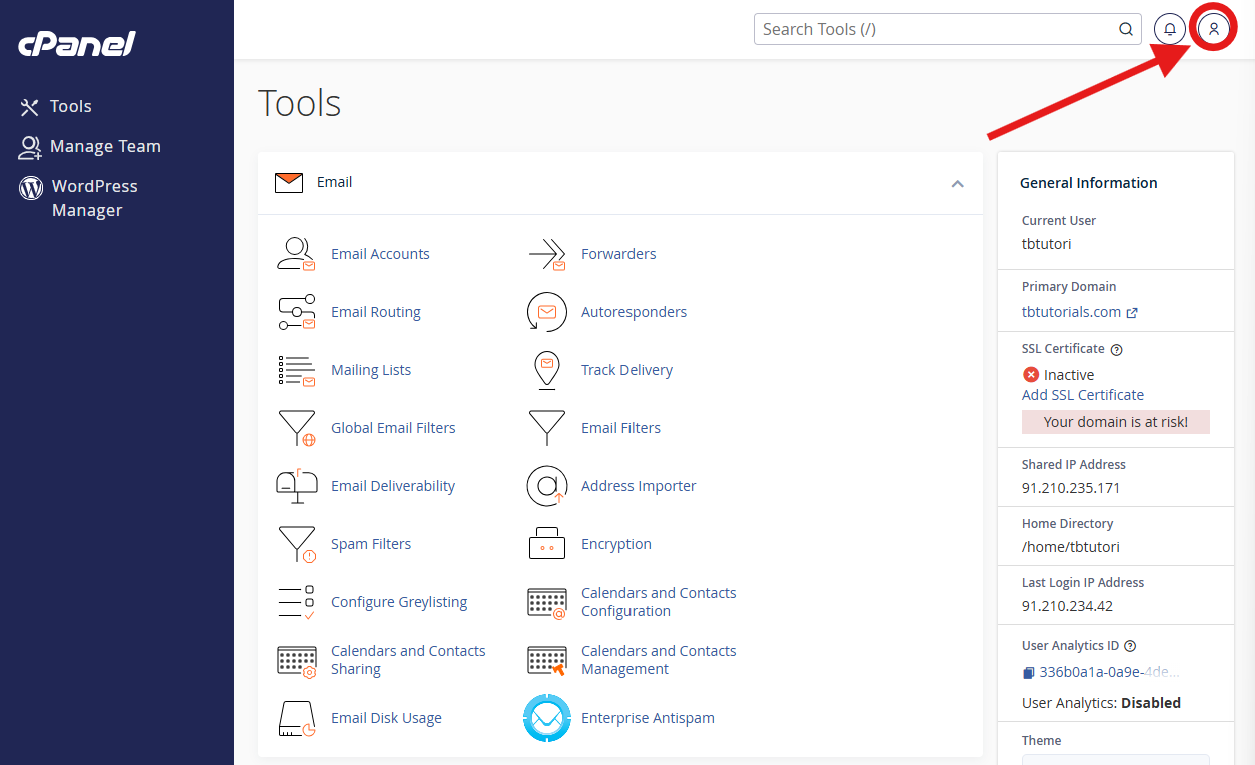
Select the user icon in the top right-hand corner of cPanel.
Step Three
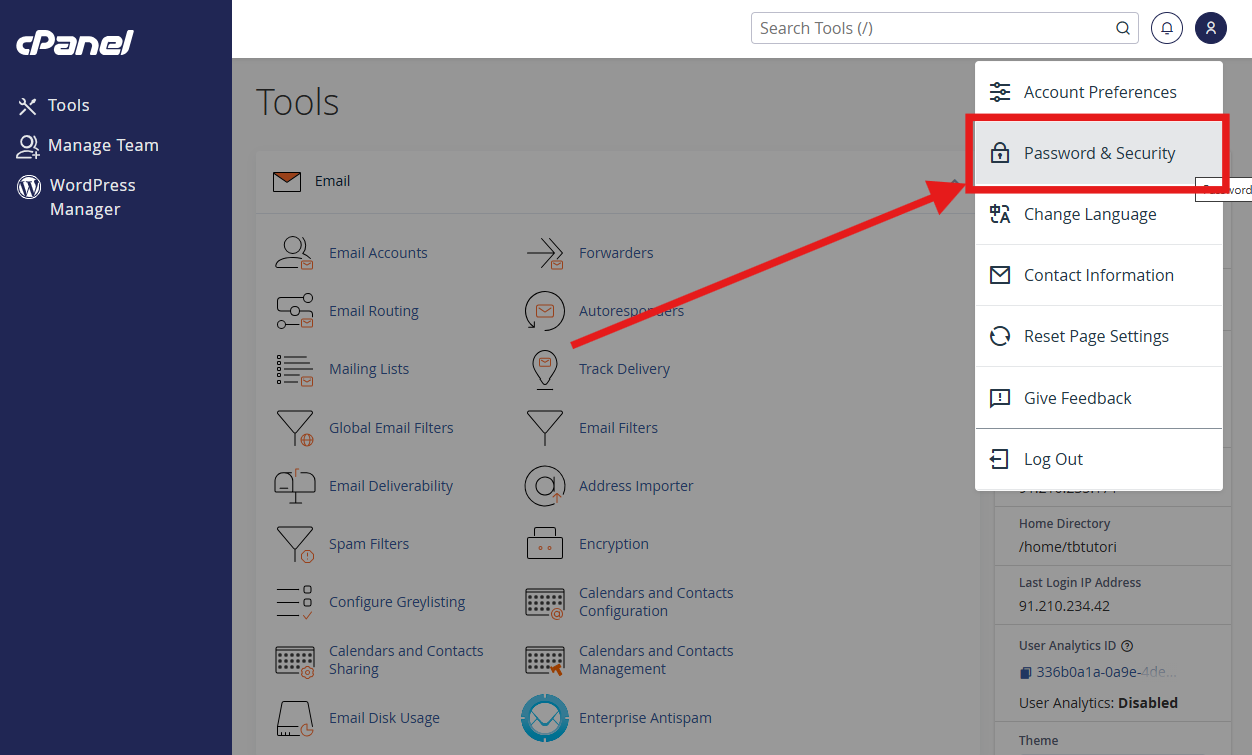
Select Password & Security.
Step Four
Enter your old password.
Then enter your new password and confirm it.
Choose a strong password that is not used anywhere else.
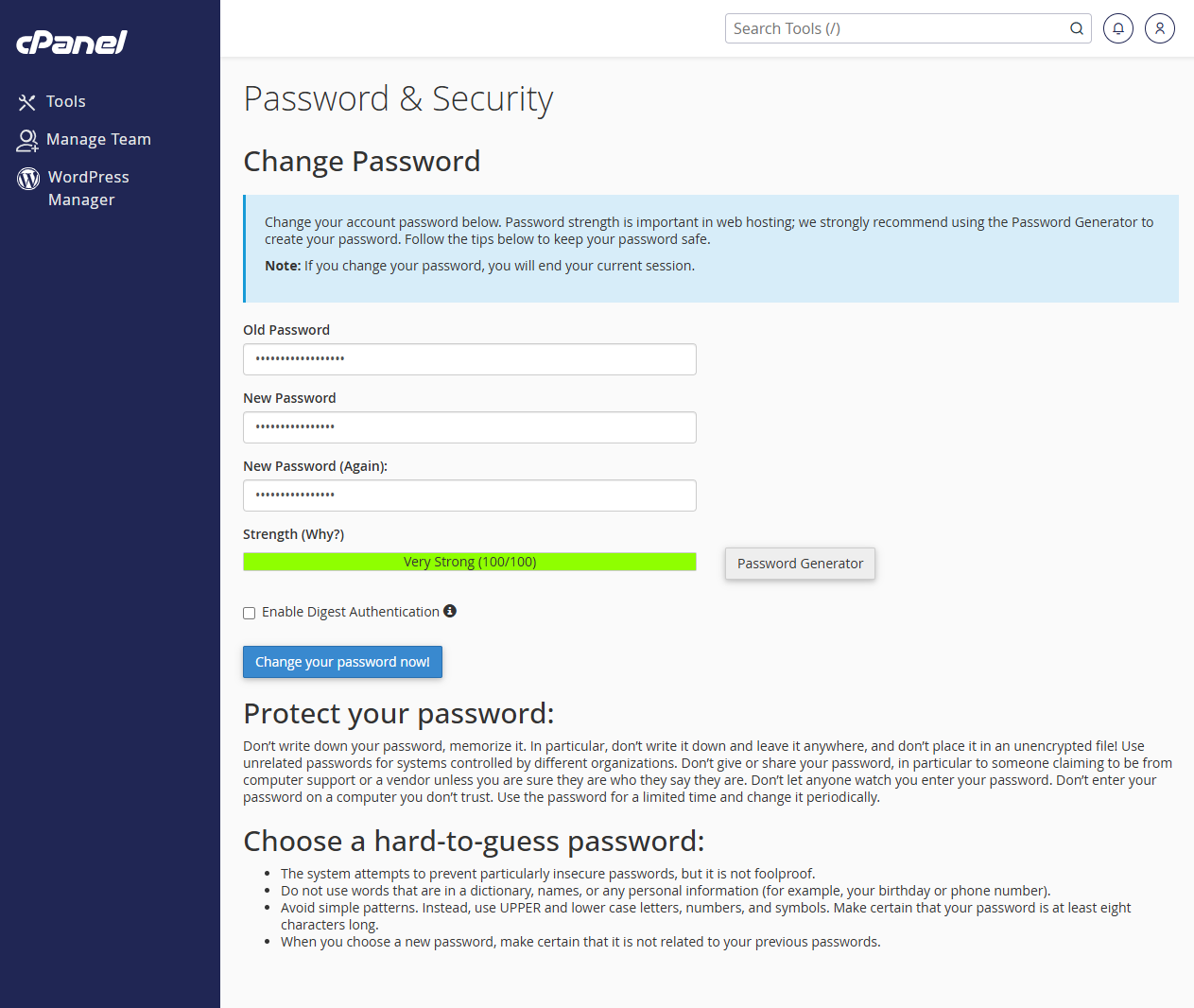
Step Five
Select Change your password now!
Important: Changing your cPanel password may also affect FTP access if your FTP user uses the same username and password as cPanel.
If you cannot log in directly to cPanel
Check the following:
- Make sure you are using the cPanel username, not your email address.
- Make sure you are using the cPanel password, not your Client Area password.
- Make sure there are no spaces before or after the username or password.
- Try using the full cPanel URL ending in :2083.
- If you recently changed the password, make sure your browser is not filling in an old saved password.
If you can log in to the Client Area, you can still use the Log in to cPanel button from your active hosting service.
Need more help?
If you have any further questions, please raise a support request from your Client Area or call us on 01 9020020.

'%3e%3cg id='Final-Copy-2_2_' transform='translate(1275.000000, 200.000000)'%3e%3cpath class='st0' d='M7.4,12.8h6.8l3.1-11.6H7.4C4.2,1.2,1.6,3.8,1.6,7S4.2,12.8,7.4,12.8z'/%3e%3c/g%3e%3c/g%3e%3c/g%3e%3cg id='final---dec.11-2020'%3e%3cg id='_x30_208-our-toggle' transform='translate(-1275.000000, -200.000000)'%3e%3cg id='Final-Copy-2' transform='translate(1275.000000, 200.000000)'%3e%3cpath class='st1' d='M22.6,0H7.4c-3.9,0-7,3.1-7,7s3.1,7,7,7h15.2c3.9,0,7-3.1,7-7S26.4,0,22.6,0z M1.6,7c0-3.2,2.6-5.8,5.8-5.8 h9.9l-3.1,11.6H7.4C4.2,12.8,1.6,10.2,1.6,7z'/%3e%3cpath id='x' class='st2' d='M24.6,4c0.2,0.2,0.2,0.6,0,0.8l0,0L22.5,7l2.2,2.2c0.2,0.2,0.2,0.6,0,0.8c-0.2,0.2-0.6,0.2-0.8,0 l0,0l-2.2-2.2L19.5,10c-0.2,0.2-0.6,0.2-0.8,0c-0.2-0.2-0.2-0.6,0-0.8l0,0L20.8,7l-2.2-2.2c-0.2-0.2-0.2-0.6,0-0.8 c0.2-0.2,0.6-0.2,0.8,0l0,0l2.2,2.2L23.8,4C24,3.8,24.4,3.8,24.6,4z'/%3e%3cpath id='y' class='st3' d='M12.7,4.1c0.2,0.2,0.3,0.6,0.1,0.8l0,0L8.6,9.8C8.5,9.9,8.4,10,8.3,10c-0.2,0.1-0.5,0.1-0.7-0.1l0,0 L5.4,7.7c-0.2-0.2-0.2-0.6,0-0.8c0.2-0.2,0.6-0.2,0.8,0l0,0L8,8.6l3.8-4.5C12,3.9,12.4,3.9,12.7,4.1z'/%3e%3c/g%3e%3c/g%3e%3c/g%3e%3c/g%3e%3c/svg%3e) Your Privacy Choices
Your Privacy Choices