
Introduction
This guide explains how to add your Hosting Ireland email account to New Outlook for Windows using IMAP.
IMAP keeps your mailbox synced between Webmail and your devices. For example, if you read, move or delete an email in New Outlook, the same change will show in Webmail and on any other devices connected to the same mailbox.
Before you start
Before setting up your email account, make sure you have:
- Created the email account in cPanel.
- The full email address you want to add.
- The password for that email account.
- Your incoming and outgoing mail server settings.
For help creating an email account, see:
How to create an email account
For help finding your email settings, see:
How to find your email settings
We also recommend logging in to Webmail before setting up the account in Outlook. This confirms that the email address and password are correct.
For help logging in to Webmail, see:
If you cannot log in to Webmail, reset the email password first:
How to reset your email password
Step One
Open New Outlook for Windows.
If this is the first email account being added to Outlook, you may be taken straight to the account setup screen. If so, go to Step Three.
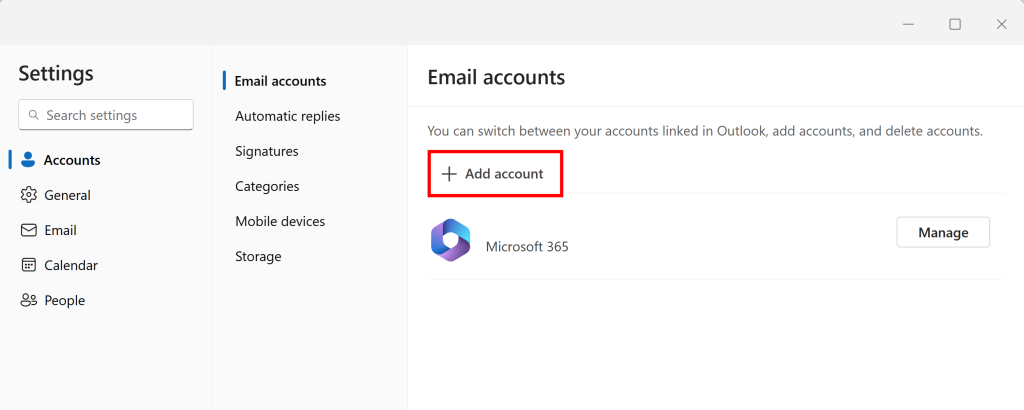
If an account is already open in New Outlook, select the Settings icon in the top right-hand corner.

Step Two
Select Accounts, then Email accounts.
Select Add account.
Step Three
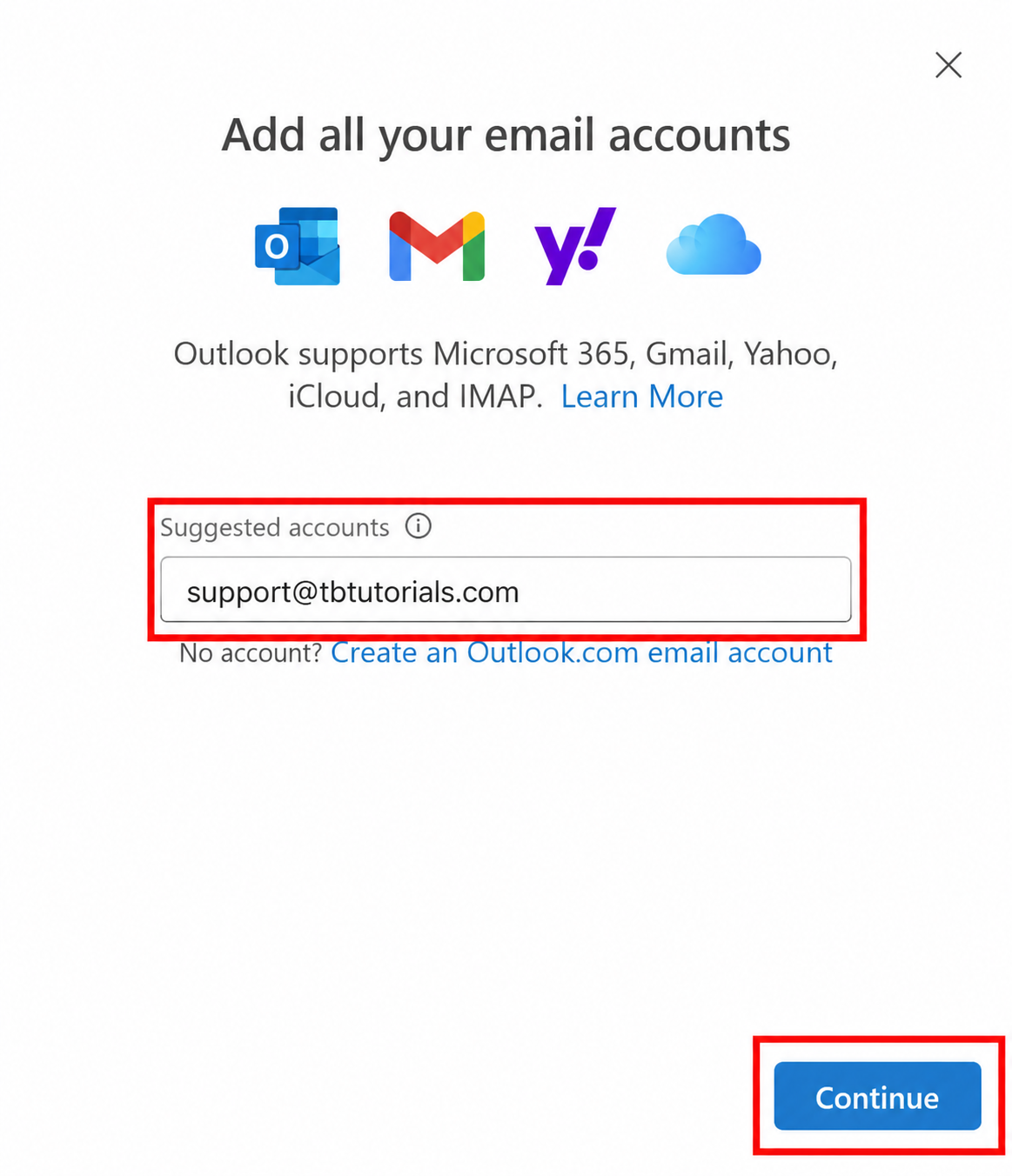
Enter the email address you want to add to Outlook, then select Continue.
Step Four
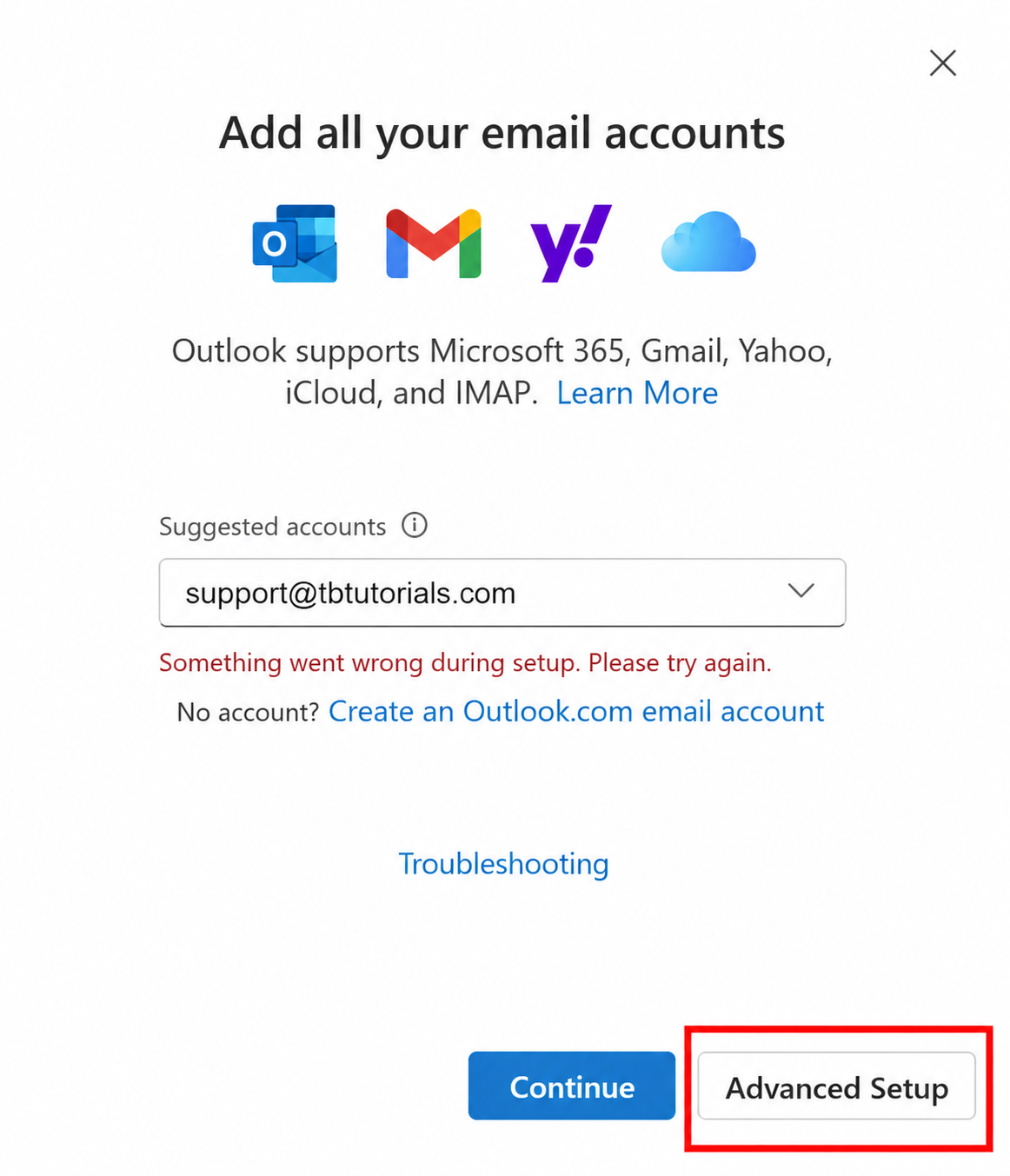
New Outlook may try to configure the account automatically, but Hosting Ireland email accounts normally need to be added manually.
If Outlook shows an error, or if it does not take you to the manual settings screen, select Advanced Setup.
Step Five
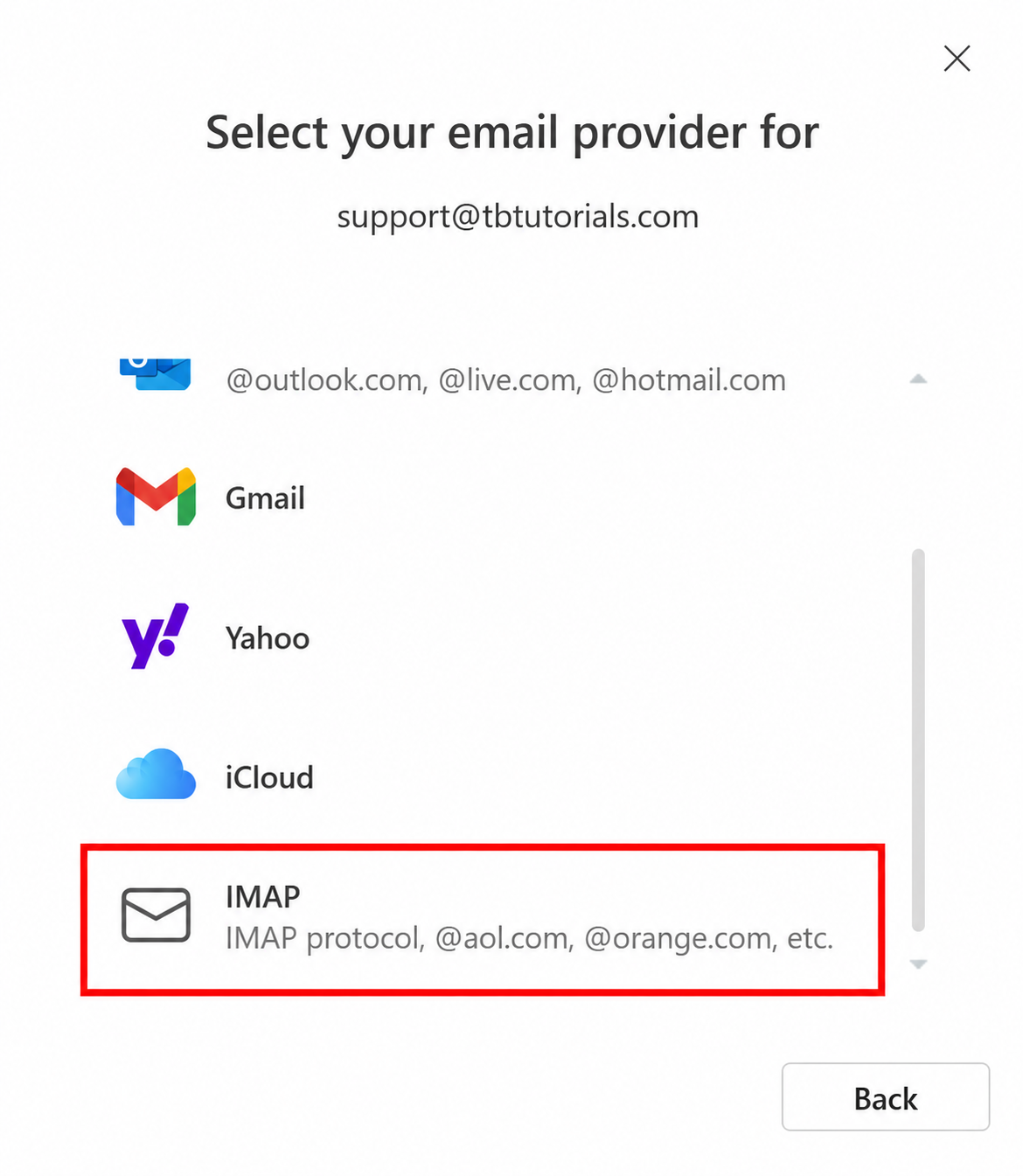
Select IMAP as the account type.
Step Six
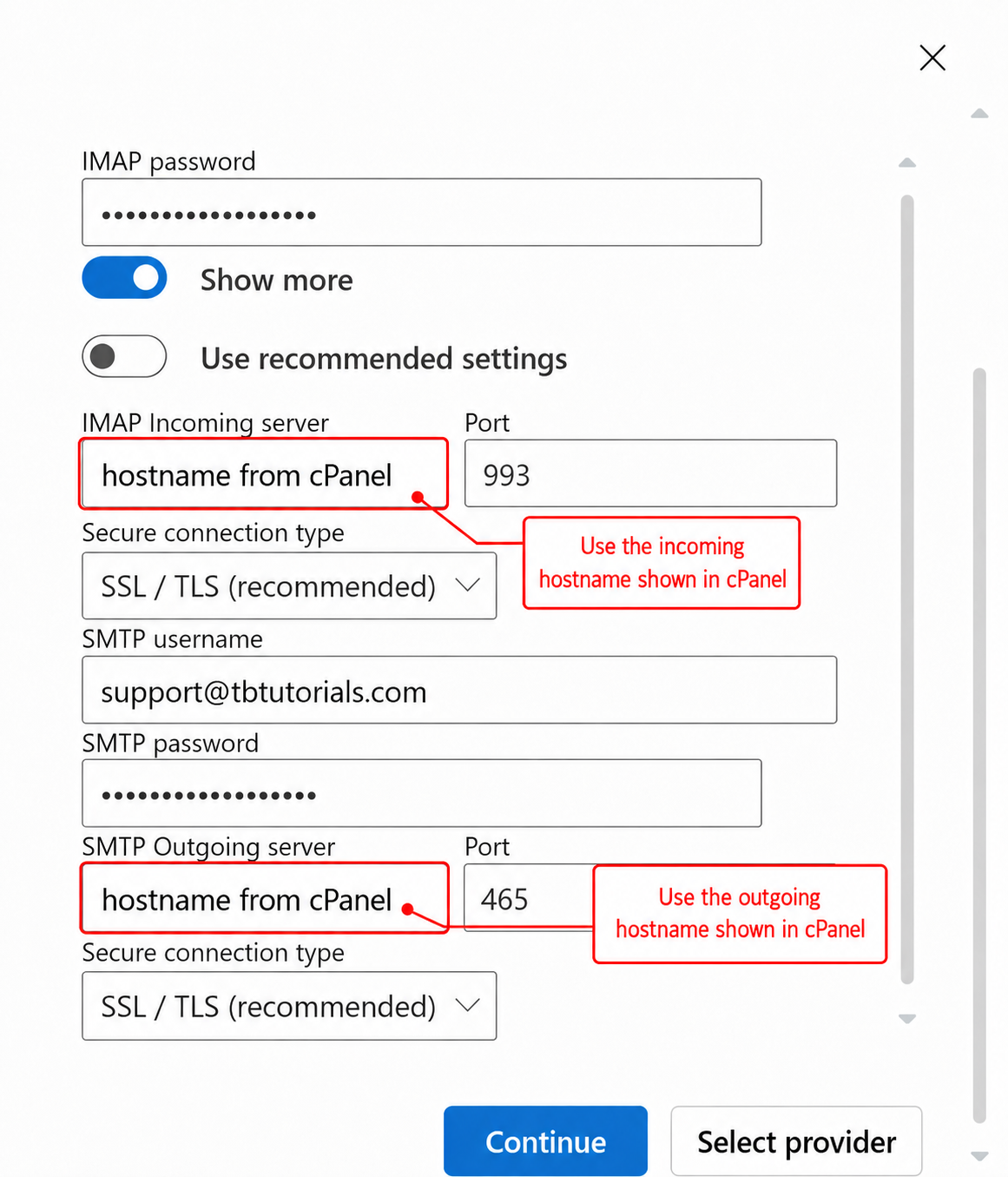
Outlook will ask for your IMAP account details.
Turn off Use recommended settings.
Turn on Show more.
This allows you to enter the incoming and outgoing mail settings manually.
Step Seven
Enter your incoming and outgoing mail settings.
Use the Secure SSL/TLS settings shown in cPanel under:
Email Accounts > Connect Devices > Mail Client Manual Settings
The details will usually follow this format:
Incoming mail settings
IMAP username: your full email address
IMAP password: your email account password
IMAP incoming server: the incoming server shown in cPanel
Port: 993
Secure connection type: SSL/TLS
Outgoing mail settings
SMTP username: your full email address
SMTP password: your email account password
SMTP outgoing server: the outgoing server shown in cPanel
Port: 465
Secure connection type: SSL/TLS
Important: the SMTP username and SMTP password are required. Do not leave them blank, even if Outlook appears to treat them as optional.
Select Continue.
Step Eight
Outlook will show a message explaining that your IMAP account needs to be synced with the Microsoft Cloud.
Select Continue to proceed.
Step Nine
Outlook will show a Setting things up screen while the account is added.
Once setup is complete, your mailbox should appear in New Outlook.
If setup fails
New Outlook may show a message such as:
“Something went wrong. Try again. You may need an app password.”
This does not mean that you need an app password for Hosting Ireland email. This message normally means that Outlook could not connect using the details entered, or that one of the settings is incorrect. Microsoft users have reported this exact wording when adding third-party IMAP accounts in New Outlook.
Check the following:
- Make sure you can log in to Webmail using the same full email address and password.
- Make sure the username is the full email address, not just the first part before the @ symbol.
- Make sure Use recommended settings is turned off.
- Make sure Show more is turned on so the full server settings are visible.
- Make sure the incoming server, outgoing server, ports and SSL/TLS options match the Secure SSL/TLS settings shown in cPanel.
- Make sure the outgoing SMTP username and SMTP password are filled in. Use:
IMAP port: 993
IMAP security: SSL/TLS
SMTP port: 465
SMTP security: SSL/TLS - If Webmail does not accept the password, reset the email password in cPanel and try again.
How to reset your email password
Need more help?
If you have any further questions, please raise a support request from your Client Area or call us on 01 9020020.

'%3e%3cg id='Final-Copy-2_2_' transform='translate(1275.000000, 200.000000)'%3e%3cpath class='st0' d='M7.4,12.8h6.8l3.1-11.6H7.4C4.2,1.2,1.6,3.8,1.6,7S4.2,12.8,7.4,12.8z'/%3e%3c/g%3e%3c/g%3e%3c/g%3e%3cg id='final---dec.11-2020'%3e%3cg id='_x30_208-our-toggle' transform='translate(-1275.000000, -200.000000)'%3e%3cg id='Final-Copy-2' transform='translate(1275.000000, 200.000000)'%3e%3cpath class='st1' d='M22.6,0H7.4c-3.9,0-7,3.1-7,7s3.1,7,7,7h15.2c3.9,0,7-3.1,7-7S26.4,0,22.6,0z M1.6,7c0-3.2,2.6-5.8,5.8-5.8 h9.9l-3.1,11.6H7.4C4.2,12.8,1.6,10.2,1.6,7z'/%3e%3cpath id='x' class='st2' d='M24.6,4c0.2,0.2,0.2,0.6,0,0.8l0,0L22.5,7l2.2,2.2c0.2,0.2,0.2,0.6,0,0.8c-0.2,0.2-0.6,0.2-0.8,0 l0,0l-2.2-2.2L19.5,10c-0.2,0.2-0.6,0.2-0.8,0c-0.2-0.2-0.2-0.6,0-0.8l0,0L20.8,7l-2.2-2.2c-0.2-0.2-0.2-0.6,0-0.8 c0.2-0.2,0.6-0.2,0.8,0l0,0l2.2,2.2L23.8,4C24,3.8,24.4,3.8,24.6,4z'/%3e%3cpath id='y' class='st3' d='M12.7,4.1c0.2,0.2,0.3,0.6,0.1,0.8l0,0L8.6,9.8C8.5,9.9,8.4,10,8.3,10c-0.2,0.1-0.5,0.1-0.7-0.1l0,0 L5.4,7.7c-0.2-0.2-0.2-0.6,0-0.8c0.2-0.2,0.6-0.2,0.8,0l0,0L8,8.6l3.8-4.5C12,3.9,12.4,3.9,12.7,4.1z'/%3e%3c/g%3e%3c/g%3e%3c/g%3e%3c/g%3e%3c/svg%3e) Your Privacy Choices
Your Privacy Choices