
Introduction
This guide explains how to find the correct settings for your email account in cPanel.
You can use these settings when adding your email account to an email app such as Outlook, Apple Mail, Gmail, Thunderbird or another mail client.
Before you start
You will need access to your Hosting Ireland Client Area and the email account you want to set up.
If you do not know how to log in to your Client Area, please follow this guide first:
How to access your Client Area
Step One
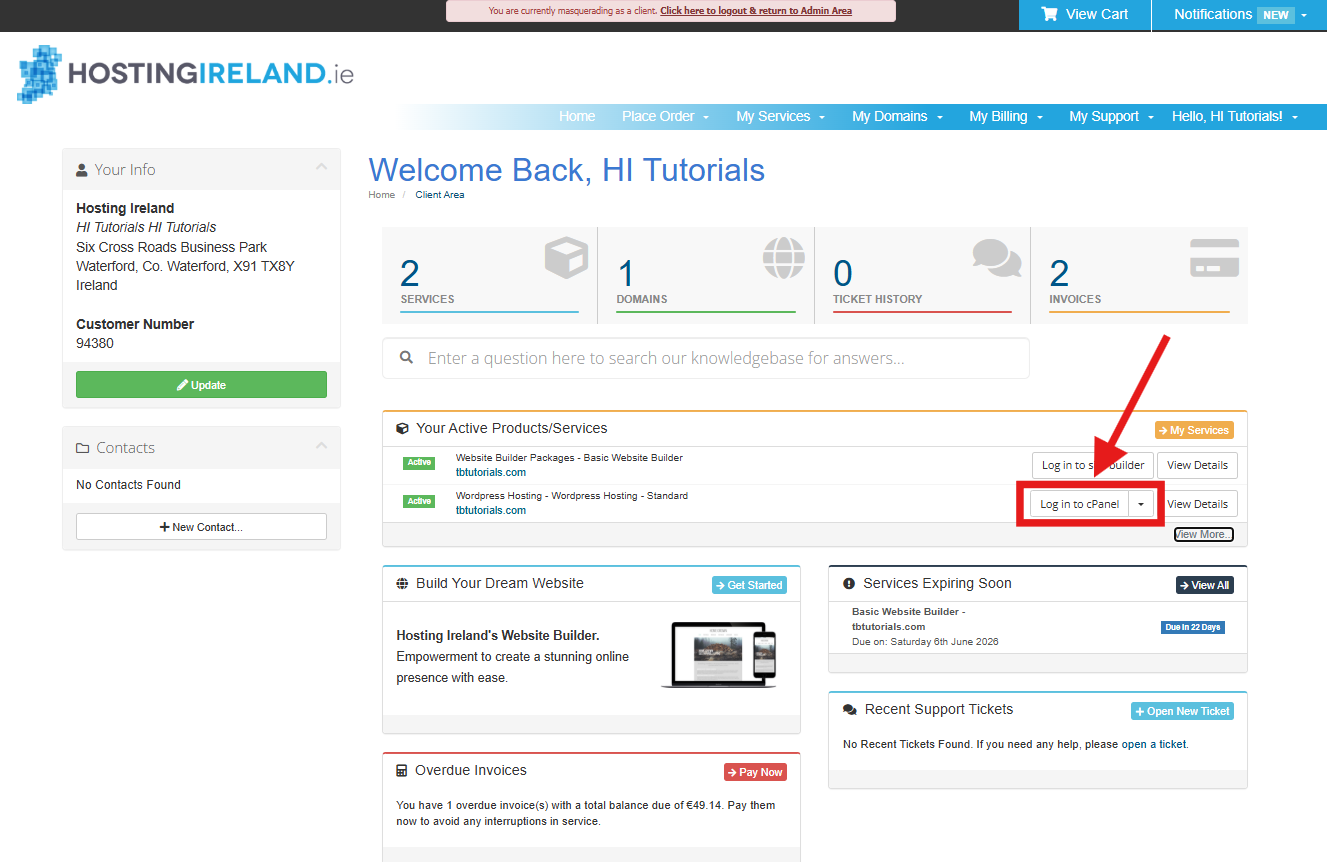
Log in to your Hosting Ireland Client Area.
Once logged in, go to Your Active Products/Services.
Find the email or web hosting service you want to manage, then select Log in to cPanel.
This option is used for both email-only hosting packages and web hosting packages that include email.
Step Two
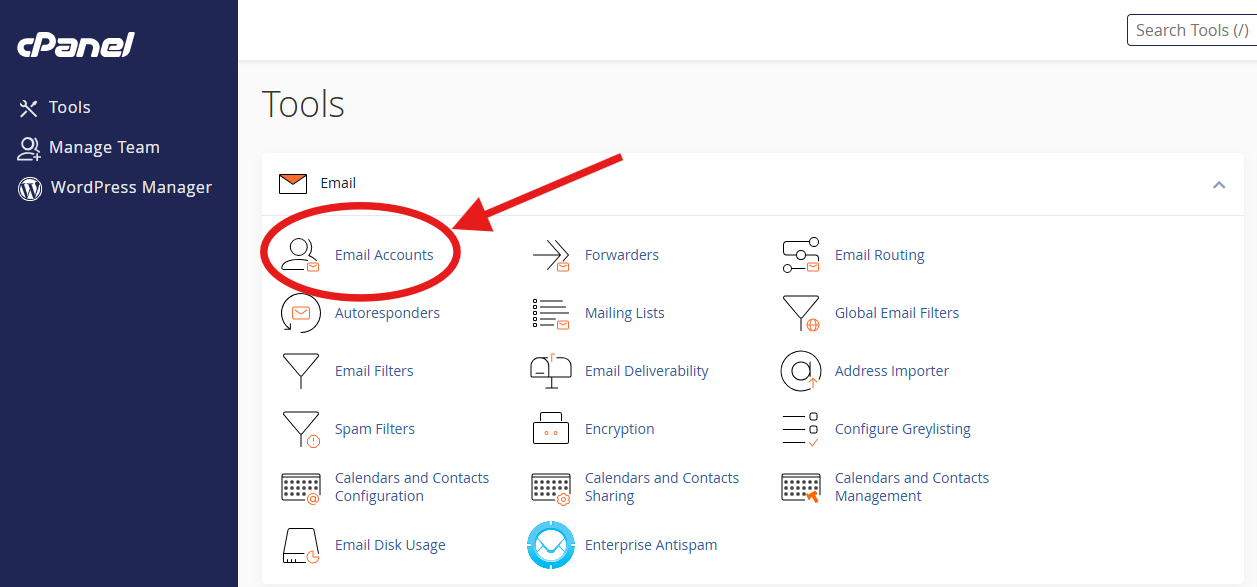
Once cPanel opens, go to the Email section.
Select Email Accounts.
Step Three
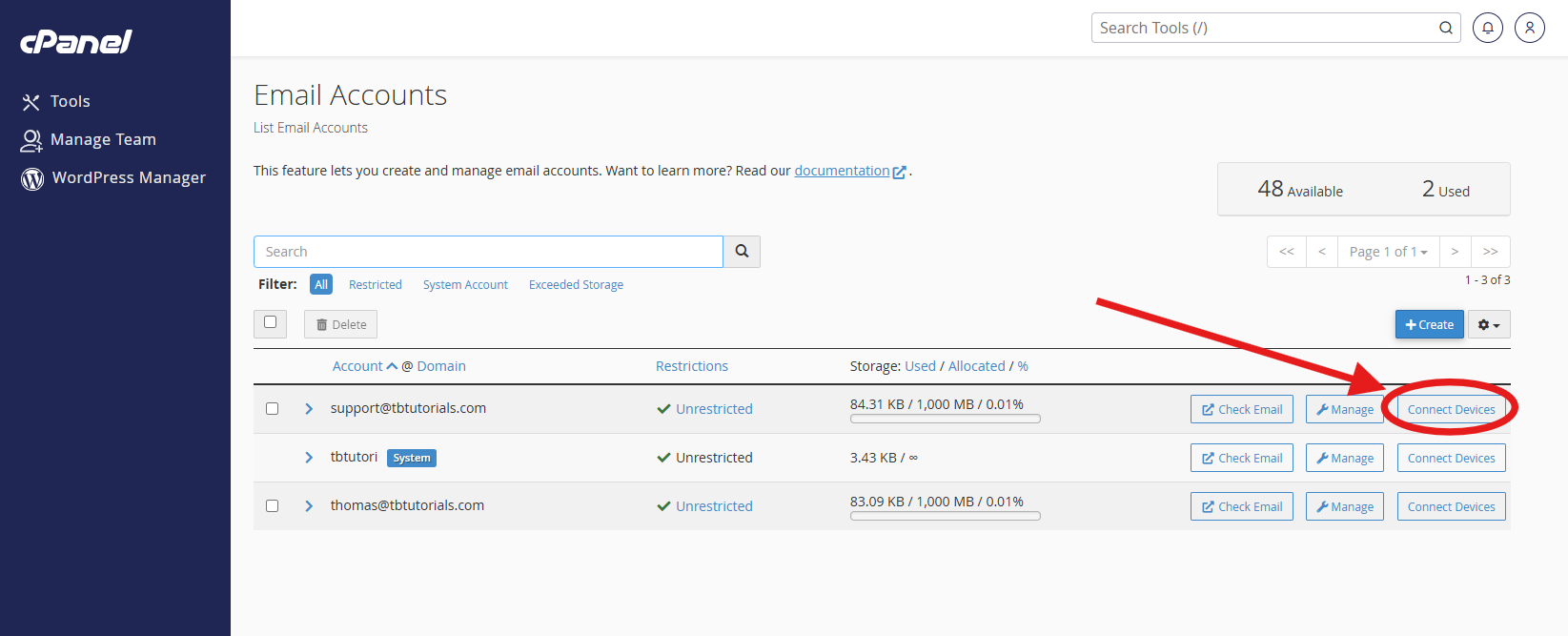
Find the email address you want to set up, then select Connect Devices.
Step Four
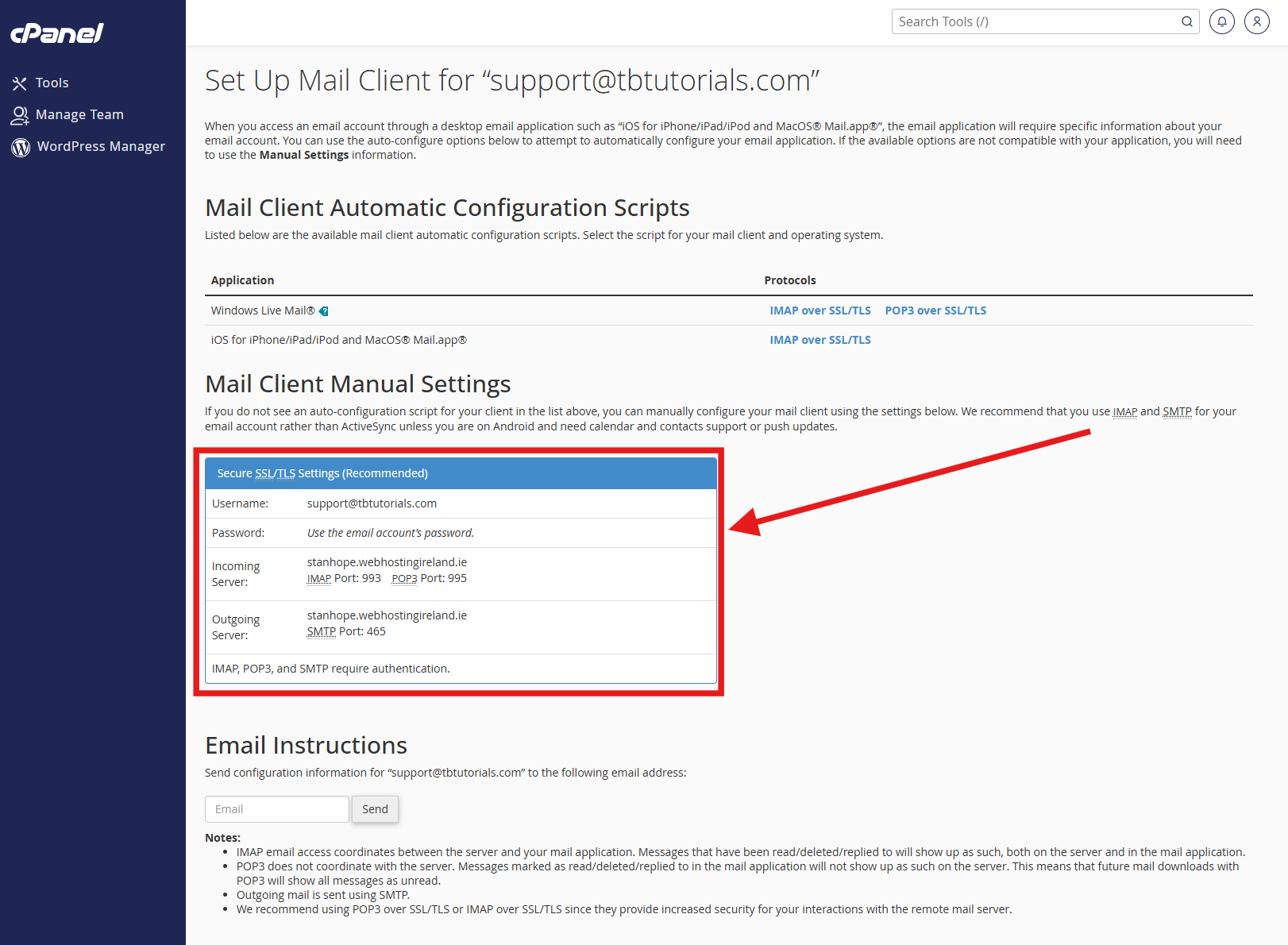
You will now see the setup page for that email account.
Scroll to Mail Client Manual Settings.
Use the Secure SSL/TLS Settings where possible.
These settings will show:
Username
This is normally your full email address.
Password
Use the password for the email account. This may be different from your Client Area or cPanel password.
Incoming Server
This is used to receive email.
Outgoing Server
This is used to send email.
IMAP Port
Use this if you want your emails to sync across Webmail and your devices.
POP3 Port
Use this only if you specifically want to download emails to one device.
SMTP Port
This is used for sending email.
Which settings should I use?
We recommend using IMAP for most email setups.
IMAP keeps the mailbox in sync between Webmail and any devices you add the email account to. For example, if you read or delete an email in Webmail, the same change will show in your email app. If you read or delete an email in your email app, the same change will show in Webmail.
POP3 downloads email to the device or app it is set up on. It does not sync read, deleted or replied-to status back to the server in the same way as IMAP. This can make it harder to manage the same mailbox across more than one device.
For most customers, IMAP with SSL/TLS is the best option.
For sending mail, your email app should use SMTP with authentication enabled.
Step Five
You can now enter these settings into your email app.
If your email app asks for a username, enter the full email address.
If your email app asks for authentication for outgoing mail, make sure this is enabled and use the same email address and password.
If your password is not accepted
If the email app says the password is incorrect, first check that you can log in to Webmail using the same email address and password.
If you cannot log in to Webmail, reset the email password and try again.
How to reset your email password
Need more help?
If you have any further questions, please raise a support request from your Client Area or call us on 01 9020020.

'%3e%3cg id='Final-Copy-2_2_' transform='translate(1275.000000, 200.000000)'%3e%3cpath class='st0' d='M7.4,12.8h6.8l3.1-11.6H7.4C4.2,1.2,1.6,3.8,1.6,7S4.2,12.8,7.4,12.8z'/%3e%3c/g%3e%3c/g%3e%3c/g%3e%3cg id='final---dec.11-2020'%3e%3cg id='_x30_208-our-toggle' transform='translate(-1275.000000, -200.000000)'%3e%3cg id='Final-Copy-2' transform='translate(1275.000000, 200.000000)'%3e%3cpath class='st1' d='M22.6,0H7.4c-3.9,0-7,3.1-7,7s3.1,7,7,7h15.2c3.9,0,7-3.1,7-7S26.4,0,22.6,0z M1.6,7c0-3.2,2.6-5.8,5.8-5.8 h9.9l-3.1,11.6H7.4C4.2,12.8,1.6,10.2,1.6,7z'/%3e%3cpath id='x' class='st2' d='M24.6,4c0.2,0.2,0.2,0.6,0,0.8l0,0L22.5,7l2.2,2.2c0.2,0.2,0.2,0.6,0,0.8c-0.2,0.2-0.6,0.2-0.8,0 l0,0l-2.2-2.2L19.5,10c-0.2,0.2-0.6,0.2-0.8,0c-0.2-0.2-0.2-0.6,0-0.8l0,0L20.8,7l-2.2-2.2c-0.2-0.2-0.2-0.6,0-0.8 c0.2-0.2,0.6-0.2,0.8,0l0,0l2.2,2.2L23.8,4C24,3.8,24.4,3.8,24.6,4z'/%3e%3cpath id='y' class='st3' d='M12.7,4.1c0.2,0.2,0.3,0.6,0.1,0.8l0,0L8.6,9.8C8.5,9.9,8.4,10,8.3,10c-0.2,0.1-0.5,0.1-0.7-0.1l0,0 L5.4,7.7c-0.2-0.2-0.2-0.6,0-0.8c0.2-0.2,0.6-0.2,0.8,0l0,0L8,8.6l3.8-4.5C12,3.9,12.4,3.9,12.7,4.1z'/%3e%3c/g%3e%3c/g%3e%3c/g%3e%3c/g%3e%3c/svg%3e) Your Privacy Choices
Your Privacy Choices