
Introduction
This guide explains how to reset the password for an email account through cPanel.
Your email password is used for Webmail and email apps such as Outlook, Apple Mail, Gmail or Thunderbird. It may be different from your Hosting Ireland Client Area or cPanel password.
Before you start
You will need access to your Hosting Ireland Client Area and the email account you want to update.
If you do not know how to log in to your Client Area, please follow this guide first:
How to access your Client Area
Step One
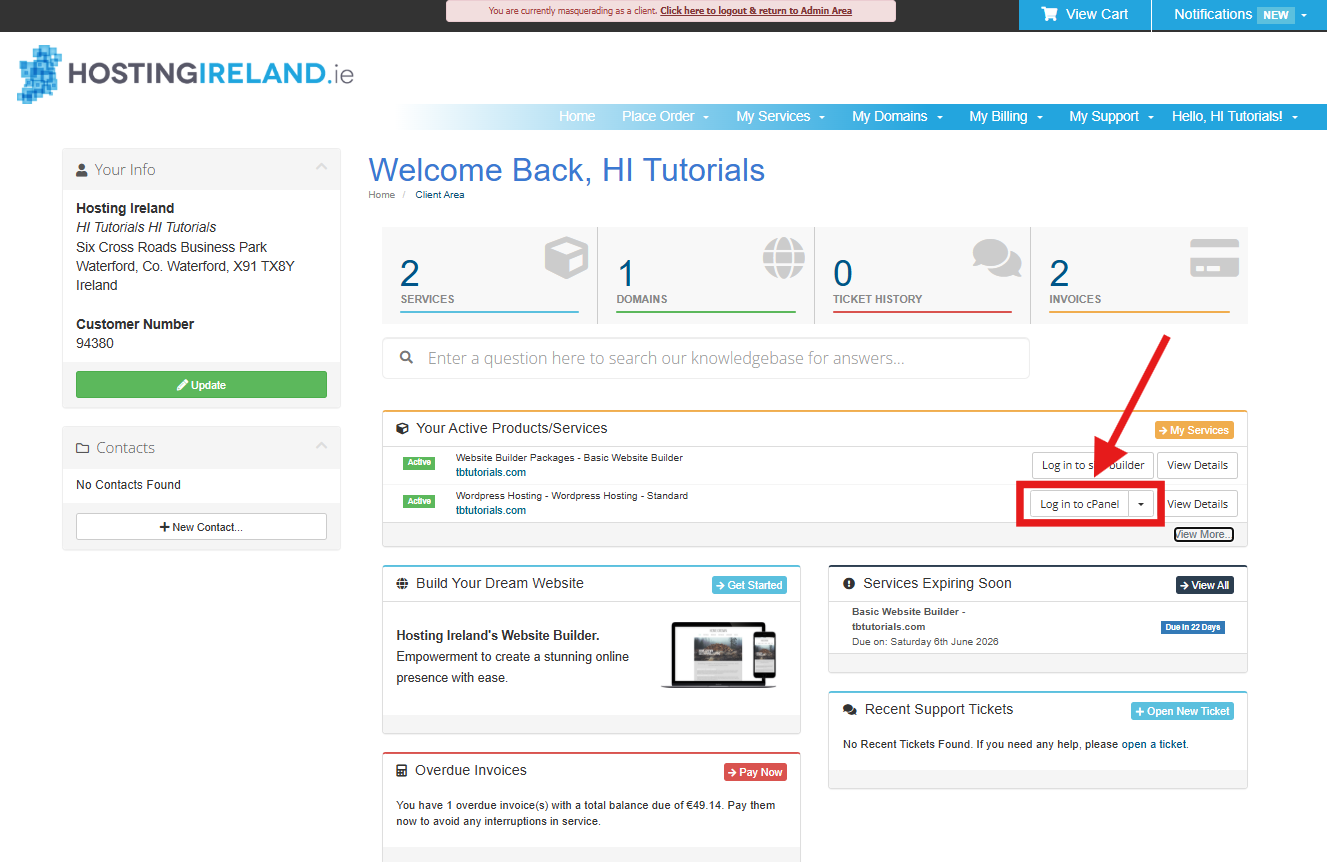
Log in to your Hosting Ireland Client Area.
Once logged in, go to Your Active Products/Services.
Find the email or web hosting service you want to manage, then select Log in to cPanel.
This option is used for both email-only hosting packages and web hosting packages that include email.
Step Two
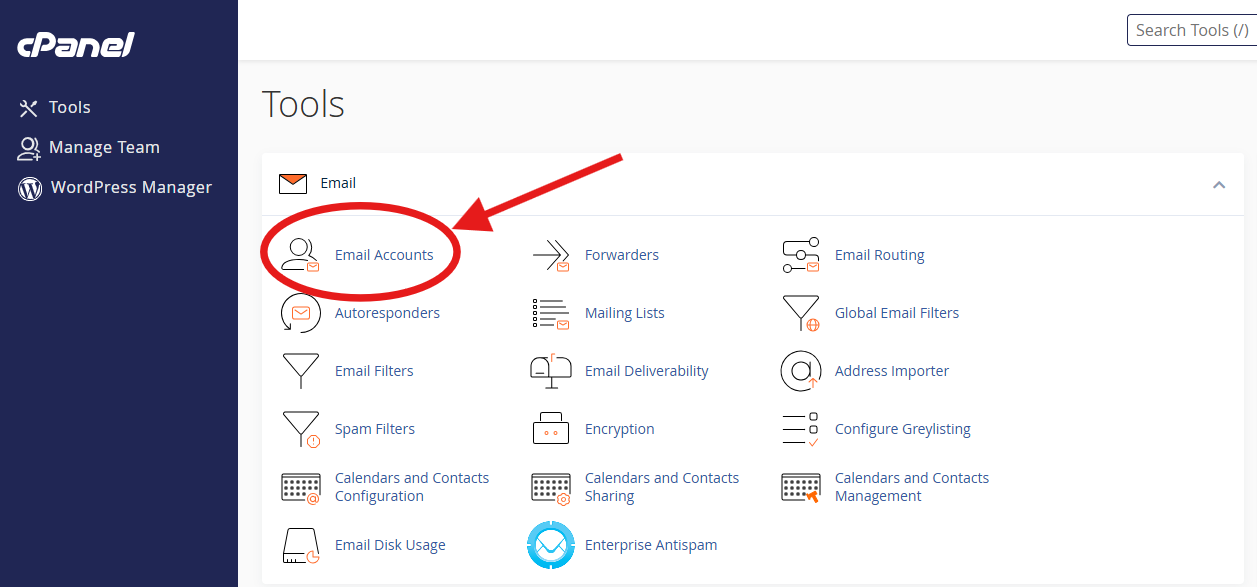
Once cPanel opens, go to the Email section.
Select Email Accounts.
Step Three
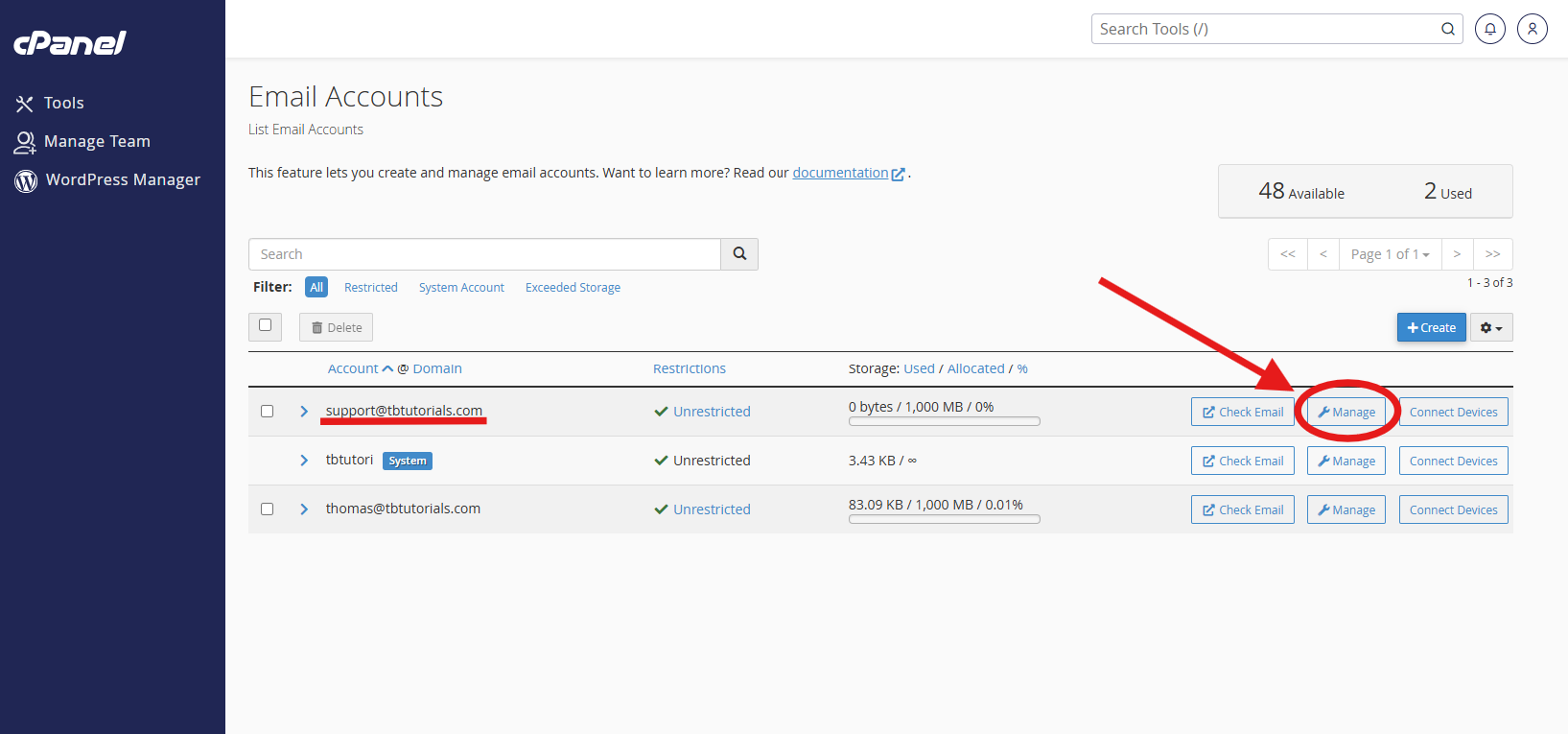
Find the email address you want to update, then select Manage.
Step Four
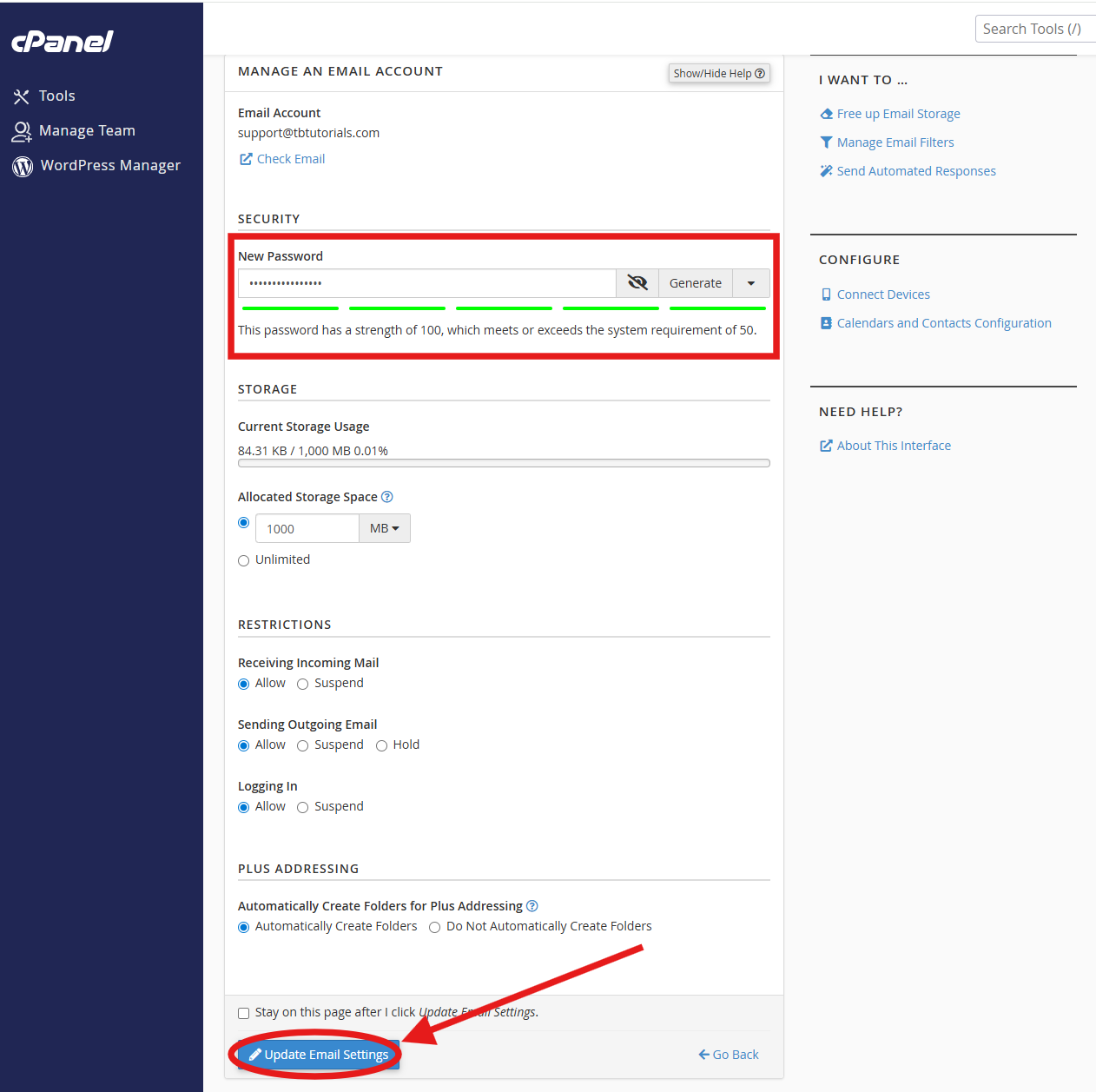
In the Security section, enter the new password.
You can either type your own password or use the Generate option to create a strong password.
Make sure the password strength meets the required level before continuing.
Step Five
Scroll to the bottom of the page and select Update Email Settings.
Step Six
The email password has now been updated.
You can now use the new password to log in to Webmail or update the saved password in your email app.
Important: Changing the email password does not automatically update the password saved on your phone, computer or tablet. If your email app keeps asking for a password, remove the old saved password and enter the new one.
Need more help?
If you have any further questions, please raise a support request from your Client Area or call us on 01 9020020.

'%3e%3cg id='Final-Copy-2_2_' transform='translate(1275.000000, 200.000000)'%3e%3cpath class='st0' d='M7.4,12.8h6.8l3.1-11.6H7.4C4.2,1.2,1.6,3.8,1.6,7S4.2,12.8,7.4,12.8z'/%3e%3c/g%3e%3c/g%3e%3c/g%3e%3cg id='final---dec.11-2020'%3e%3cg id='_x30_208-our-toggle' transform='translate(-1275.000000, -200.000000)'%3e%3cg id='Final-Copy-2' transform='translate(1275.000000, 200.000000)'%3e%3cpath class='st1' d='M22.6,0H7.4c-3.9,0-7,3.1-7,7s3.1,7,7,7h15.2c3.9,0,7-3.1,7-7S26.4,0,22.6,0z M1.6,7c0-3.2,2.6-5.8,5.8-5.8 h9.9l-3.1,11.6H7.4C4.2,12.8,1.6,10.2,1.6,7z'/%3e%3cpath id='x' class='st2' d='M24.6,4c0.2,0.2,0.2,0.6,0,0.8l0,0L22.5,7l2.2,2.2c0.2,0.2,0.2,0.6,0,0.8c-0.2,0.2-0.6,0.2-0.8,0 l0,0l-2.2-2.2L19.5,10c-0.2,0.2-0.6,0.2-0.8,0c-0.2-0.2-0.2-0.6,0-0.8l0,0L20.8,7l-2.2-2.2c-0.2-0.2-0.2-0.6,0-0.8 c0.2-0.2,0.6-0.2,0.8,0l0,0l2.2,2.2L23.8,4C24,3.8,24.4,3.8,24.6,4z'/%3e%3cpath id='y' class='st3' d='M12.7,4.1c0.2,0.2,0.3,0.6,0.1,0.8l0,0L8.6,9.8C8.5,9.9,8.4,10,8.3,10c-0.2,0.1-0.5,0.1-0.7-0.1l0,0 L5.4,7.7c-0.2-0.2-0.2-0.6,0-0.8c0.2-0.2,0.6-0.2,0.8,0l0,0L8,8.6l3.8-4.5C12,3.9,12.4,3.9,12.7,4.1z'/%3e%3c/g%3e%3c/g%3e%3c/g%3e%3c/g%3e%3c/svg%3e) Your Privacy Choices
Your Privacy Choices