
Introduction
This guide explains how to log in to Webmail for your Hosting Ireland email account.
Webmail lets you check your email through a web browser without needing to set up an email app such as Outlook, Apple Mail, Gmail or Thunderbird.
Before you start
You will need:
Access to your Hosting Ireland Client Area.
The email address you want to check.
The password for that email account.
Your email password may be different from your Client Area or cPanel password.
If you do not know how to log in to your Client Area, please follow this guide first:
How to access your Client Area
Option One: Log in through cPanel
Step One
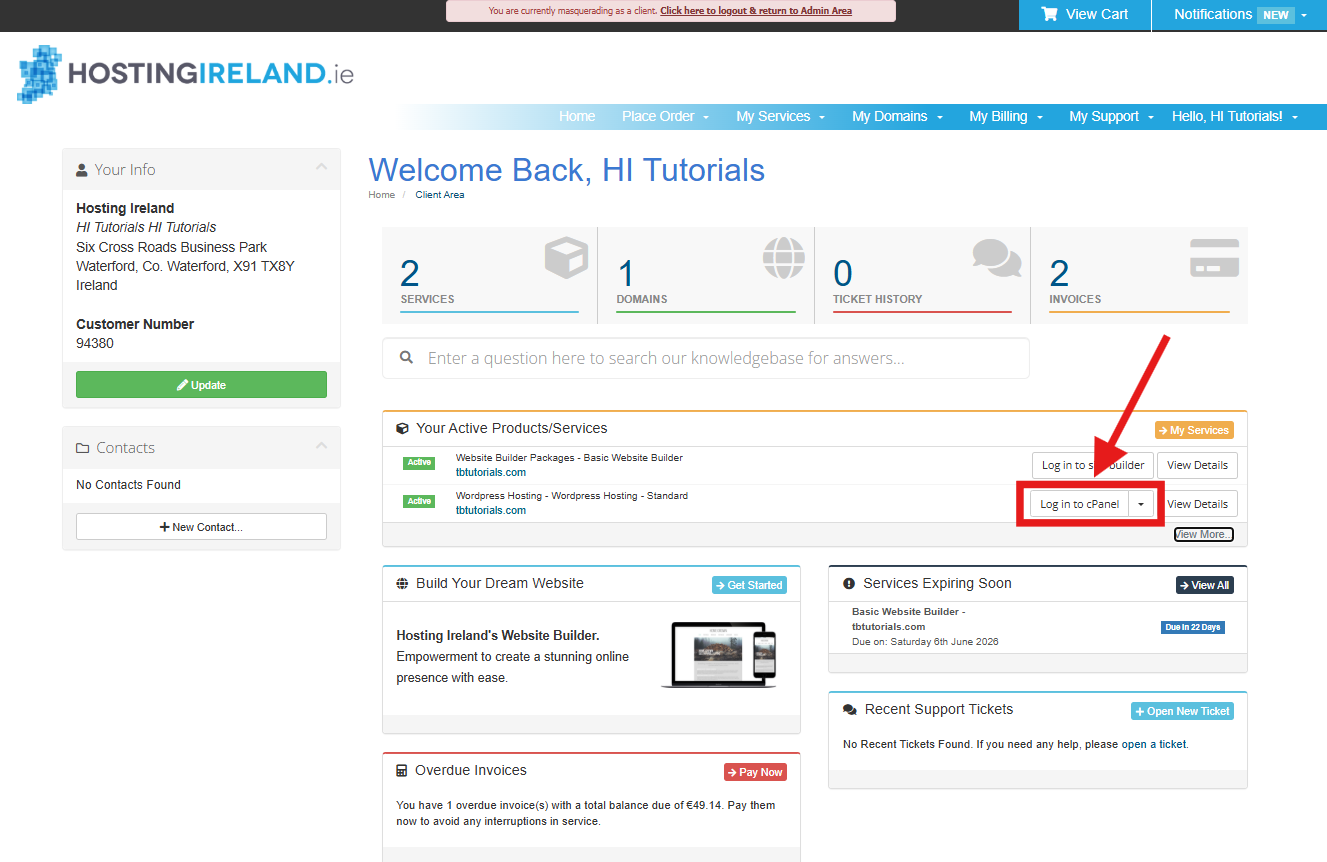
Log in to your Hosting Ireland Client Area.
Once logged in, go to Your Active Products/Services.
Find the email or web hosting service you want to manage, then select Log in to cPanel.
This option is used for both email-only hosting packages and web hosting packages that include email.
Step Two
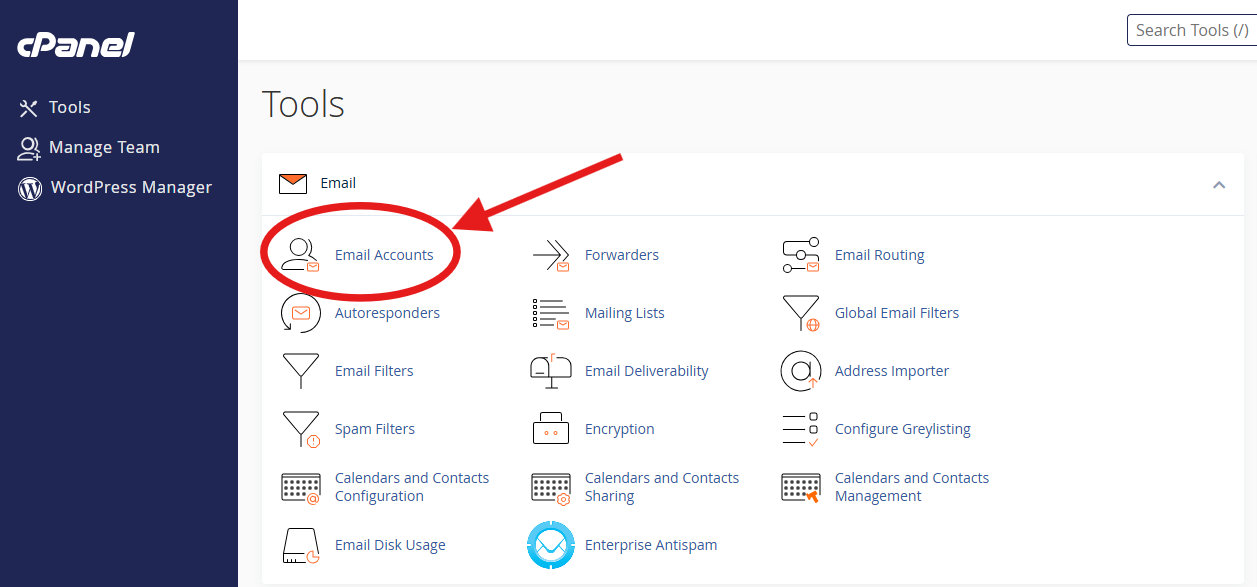
Once cPanel opens, go to the Email section.
Select Email Accounts.
Step Three
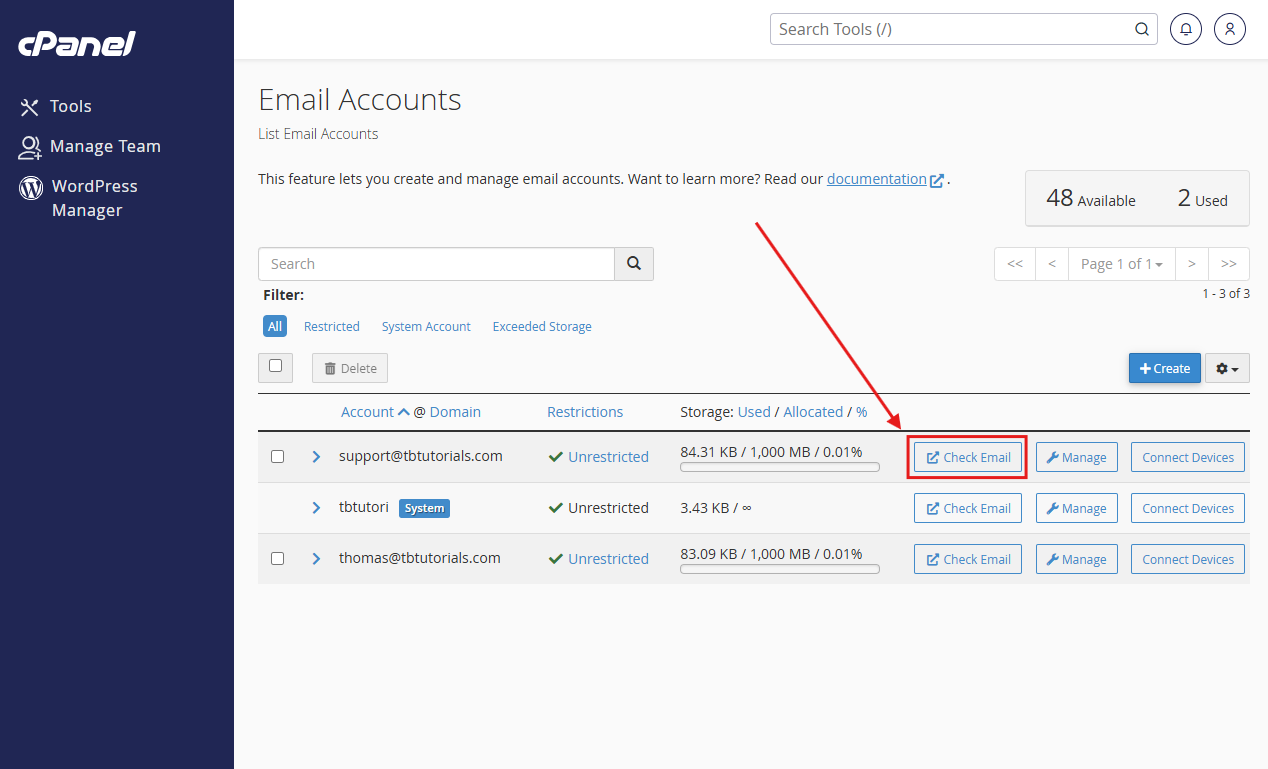
Find the email address you want to access, then select Check Email.
Step Four
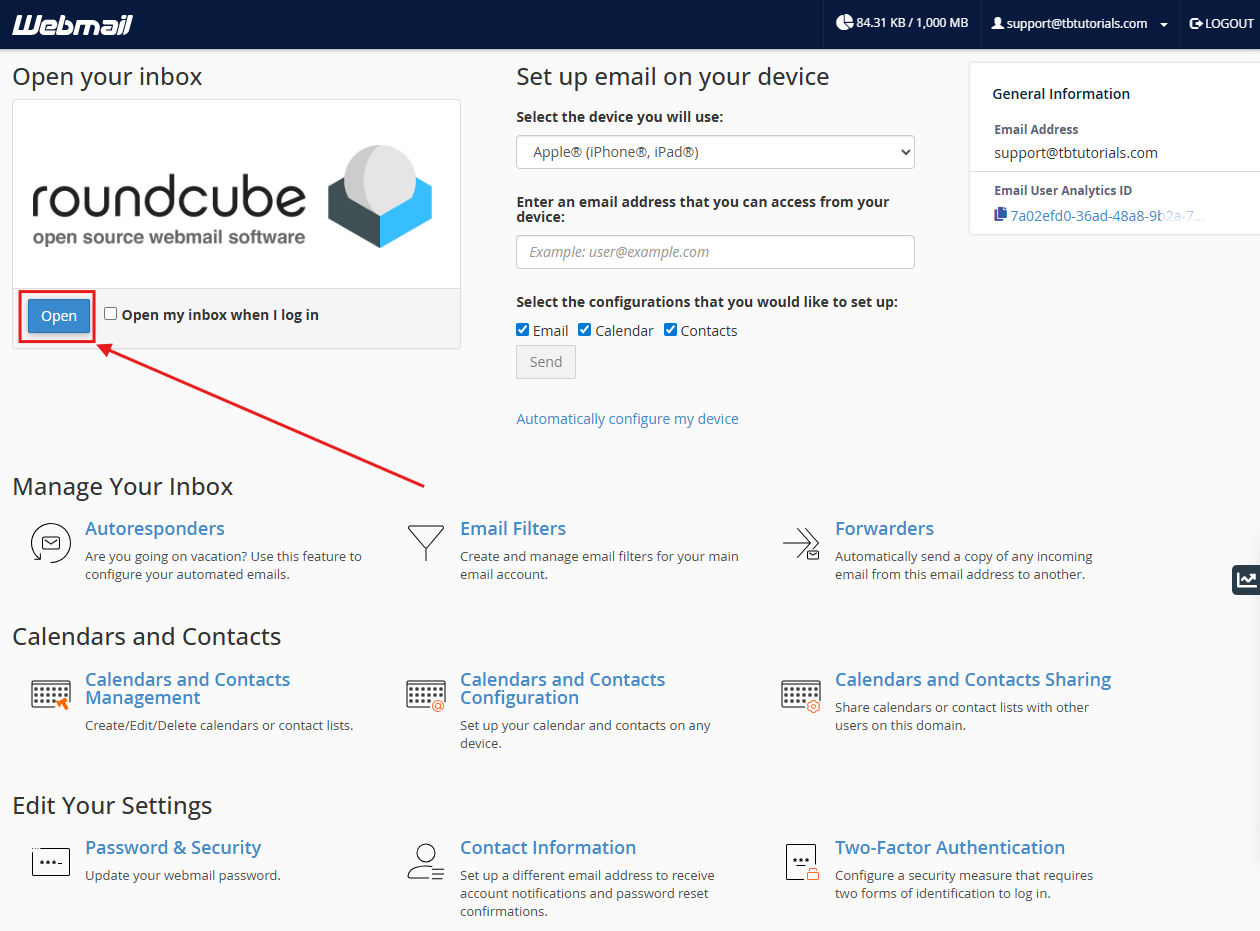
You will be taken to the Webmail page for that email address.
Select Open to open your inbox.
Step Five
Your inbox will now open in Roundcube Webmail.
From here, you can read, send, reply to and delete emails.
Option Two: Log in directly to Webmail
You can also log in directly through your Webmail URL.
Your Webmail URL will normally use this format:
https://server-name.webhostingireland.ie:2096/
The server name may be different depending on which hosting server your email account is on.
You can find your server name from the email settings shown in cPanel. For example, if your incoming and outgoing server is:
stanhope.webhostingireland.ie
your direct Webmail URL would be:
https://stanhope.webhostingireland.ie:2096/
For help finding your email settings, see:
Step One
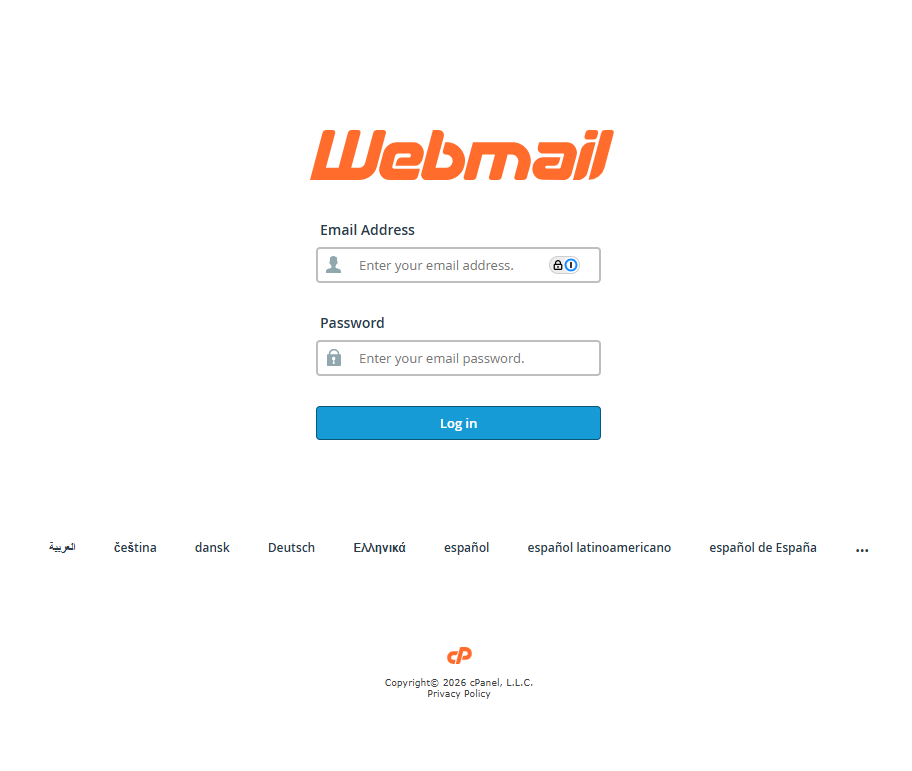
Go to your Webmail URL in your browser.
Step Two
Enter your full email address and the email account password.
Then select Log in.
If your password is not accepted
Make sure you are entering the full email address as the username.
Make sure you are using the email account password, not your Client Area or cPanel password.
If you are unsure of the password, reset it through cPanel and try again.
How to reset your email password
Need more help?
If you have any further questions, please raise a support request from your Client Area or call us on 01 9020020.

'%3e%3cg id='Final-Copy-2_2_' transform='translate(1275.000000, 200.000000)'%3e%3cpath class='st0' d='M7.4,12.8h6.8l3.1-11.6H7.4C4.2,1.2,1.6,3.8,1.6,7S4.2,12.8,7.4,12.8z'/%3e%3c/g%3e%3c/g%3e%3c/g%3e%3cg id='final---dec.11-2020'%3e%3cg id='_x30_208-our-toggle' transform='translate(-1275.000000, -200.000000)'%3e%3cg id='Final-Copy-2' transform='translate(1275.000000, 200.000000)'%3e%3cpath class='st1' d='M22.6,0H7.4c-3.9,0-7,3.1-7,7s3.1,7,7,7h15.2c3.9,0,7-3.1,7-7S26.4,0,22.6,0z M1.6,7c0-3.2,2.6-5.8,5.8-5.8 h9.9l-3.1,11.6H7.4C4.2,12.8,1.6,10.2,1.6,7z'/%3e%3cpath id='x' class='st2' d='M24.6,4c0.2,0.2,0.2,0.6,0,0.8l0,0L22.5,7l2.2,2.2c0.2,0.2,0.2,0.6,0,0.8c-0.2,0.2-0.6,0.2-0.8,0 l0,0l-2.2-2.2L19.5,10c-0.2,0.2-0.6,0.2-0.8,0c-0.2-0.2-0.2-0.6,0-0.8l0,0L20.8,7l-2.2-2.2c-0.2-0.2-0.2-0.6,0-0.8 c0.2-0.2,0.6-0.2,0.8,0l0,0l2.2,2.2L23.8,4C24,3.8,24.4,3.8,24.6,4z'/%3e%3cpath id='y' class='st3' d='M12.7,4.1c0.2,0.2,0.3,0.6,0.1,0.8l0,0L8.6,9.8C8.5,9.9,8.4,10,8.3,10c-0.2,0.1-0.5,0.1-0.7-0.1l0,0 L5.4,7.7c-0.2-0.2-0.2-0.6,0-0.8c0.2-0.2,0.6-0.2,0.8,0l0,0L8,8.6l3.8-4.5C12,3.9,12.4,3.9,12.7,4.1z'/%3e%3c/g%3e%3c/g%3e%3c/g%3e%3c/g%3e%3c/svg%3e) Your Privacy Choices
Your Privacy Choices