
Overview
The DNS Manager in the client area allows you manage the DNS records currently on your domain. You can edit, delete and add records, either manually or by template.
Accessing the DNS Manager
To access the DNS Manager, simply navigate to My Domains > DNS Manager in the client area.
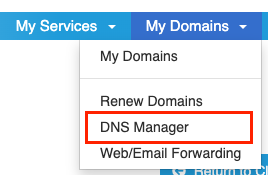
From here, choose your domain from the dropdown and press Continue.

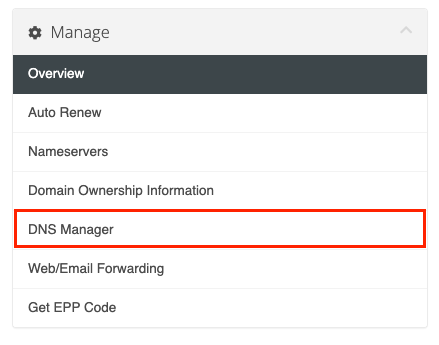
Another way to access the DNS Manager is through your domains management page. Simply navigate to My Domains > My Domains, choose your domain from the list and then choose DNS Manager from the sidebar.
The DNS Manager Screen
Once you access the DNS Manager, if your domain has no DNS zone, you will be prompted to create one. You can either choose a predefined template such as Shopify, Google Workspace, Microsoft365 or our forwarding server. Alternatively if you want to point your domain to a specific IP address, the option to do this is here also.
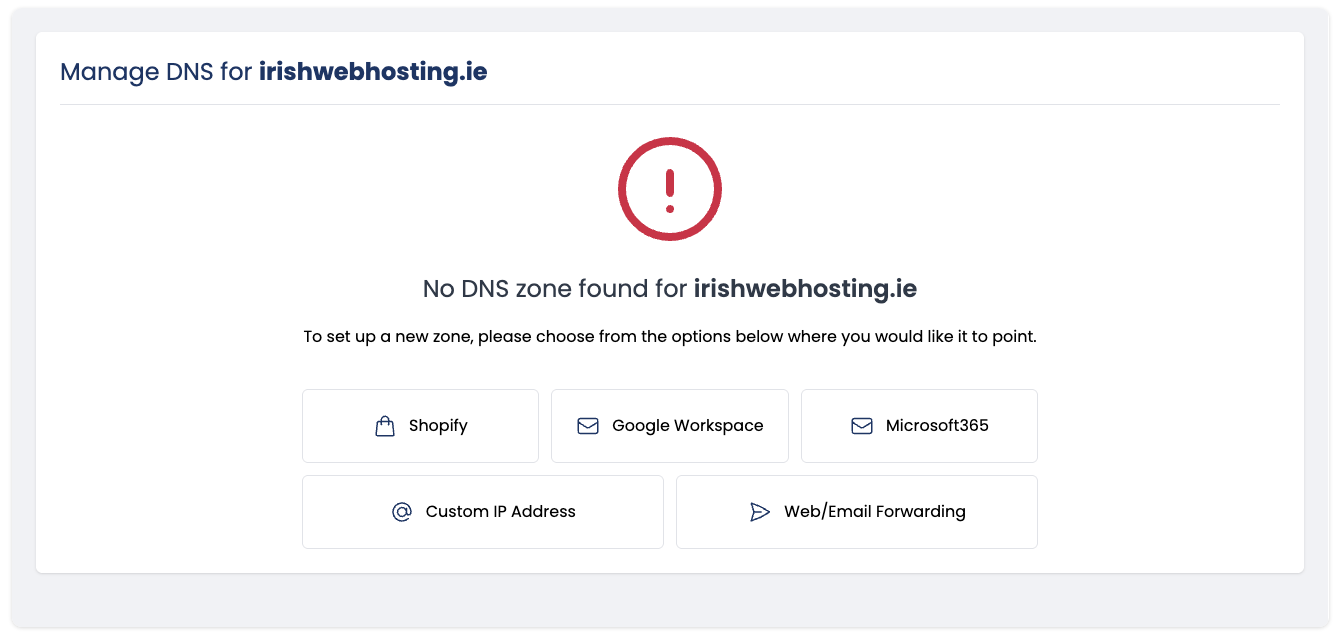
Once you are happy, press Create.
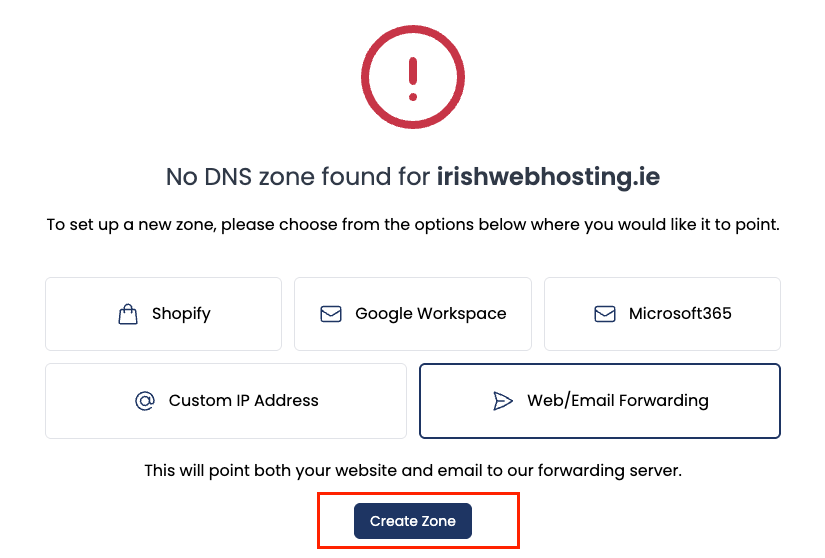
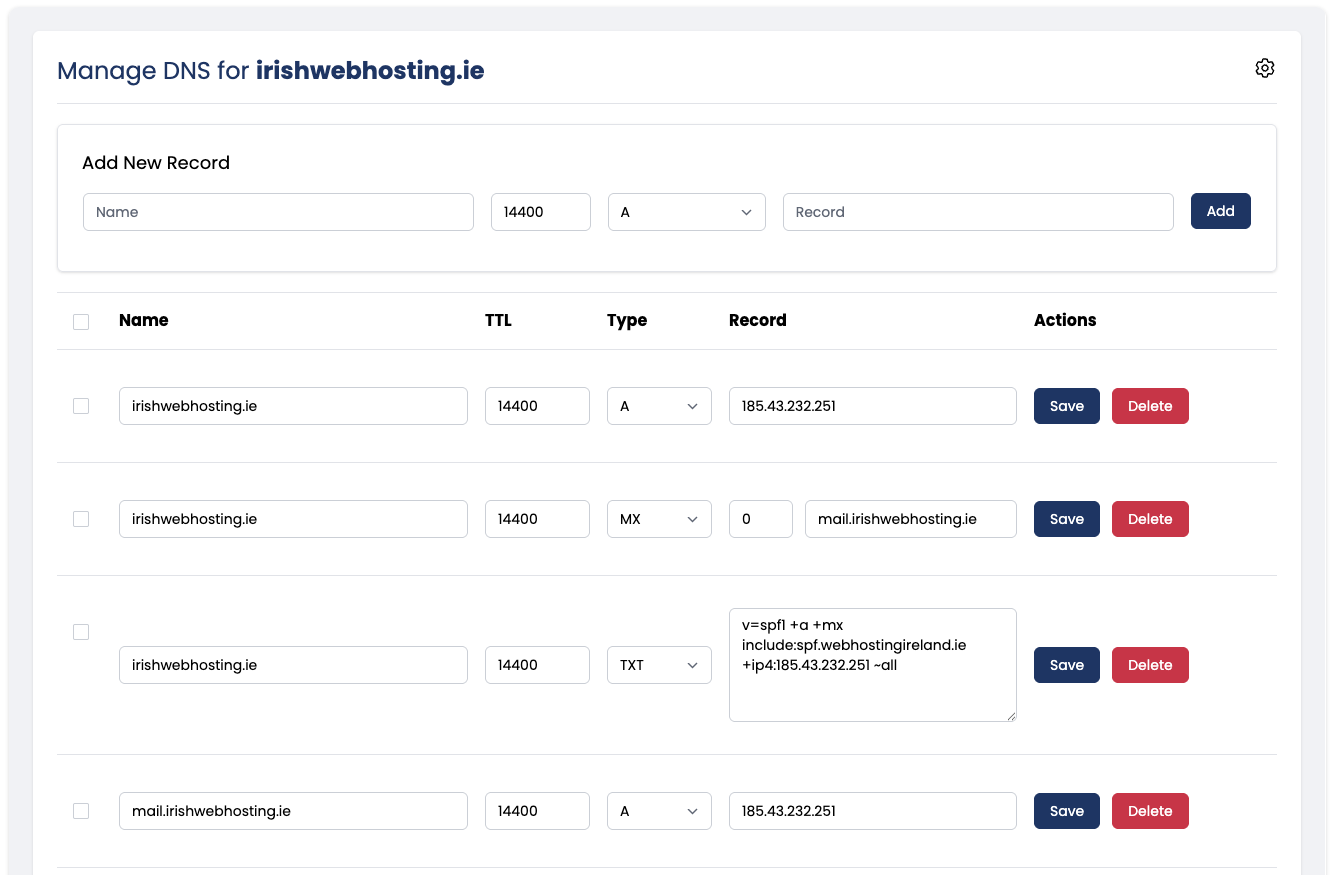
The main screen of the DNS Manager shows all current records in the DNS zone, as well as the option to add a DNS record.
Settings
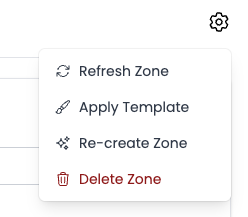
Clicking the gear icon in the top right hand corner reveals a menu of items to allow you manage your DNS zone.
Refresh DNS Zone
This allows you to refresh the DNS records on your screen to ensure they are fully up to date.
Apply Template
This allows you to apply a template for a popular provider to your current DNS zone. Doing this will overwrite certain records in your zone, which will be confirmed to you before you make the change.
Re-create zone
This allows you re-create your DNS zone without having to delete it first. The options listed here are the same as when you are creating a new zone.
This option is only available if you do not have a hosting account associated with the domain in question.
Delete zone
This allows you to delete your DNS zone.
This option is only available if do not have a hosting account associated with the domain in question.
Reset zone
This allows you to reset your DNS zone to default records.
This option is only available if you have a hosting account associated with the domain in question.
Adding a DNS record
You can add a new DNS record at the top of the DNS Manager. Simply enter the record Name, TTL, Type and Record Data and press Add.

Tip: You can enter @ to quickly autofill your domain in the Name field.
Depending on the record type, you may also be asked to enter additional information, for example, the Priority field for the MX record type.
Modifying a DNS record
To modify an existing DNS record, simply make the relevant changes to the record in the DNS Manager and press Save. If you make a mistake, press the Revert button to put the record back to the way it was before you made any changes.

Deleting a DNS record
To delete an existing DNS record, simply press the Delete button beside the relevant record in the DNS Manager. You will be prompted to confirm the deletion.
Warning: Doing this will permanently delete the DNS record and you cannot undo this.

Modifying multiple DNS records
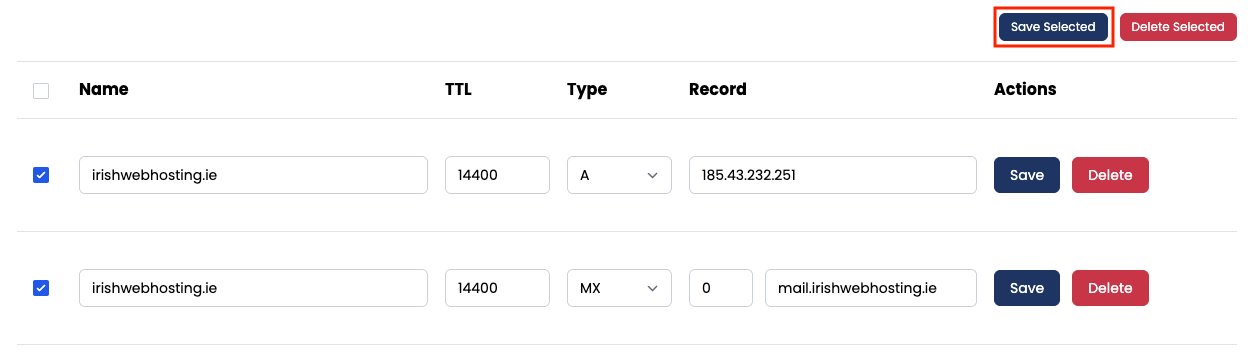
To modify multiple DNS records, make the relevant changes to the records and then press the checkbox beside each record. A new button will appear at the top and bottom of the DNS Manager to Save Selected. Press this button to commit the changes.
Deleting multiple DNS records
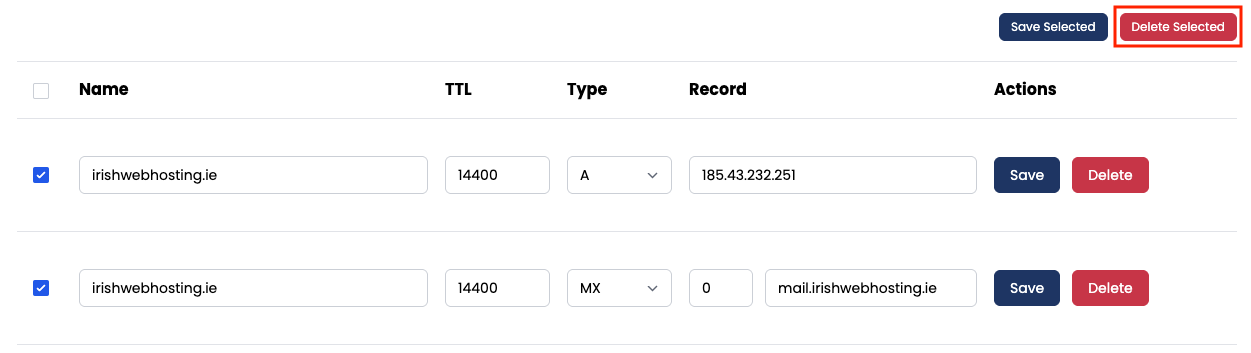
To delete multiple DNS records, press the checkbox beside the records you wish to delete and then press the Delete Selected button that appears at the top and bottom of the DNS Manager.

'%3e%3cg id='Final-Copy-2_2_' transform='translate(1275.000000, 200.000000)'%3e%3cpath class='st0' d='M7.4,12.8h6.8l3.1-11.6H7.4C4.2,1.2,1.6,3.8,1.6,7S4.2,12.8,7.4,12.8z'/%3e%3c/g%3e%3c/g%3e%3c/g%3e%3cg id='final---dec.11-2020'%3e%3cg id='_x30_208-our-toggle' transform='translate(-1275.000000, -200.000000)'%3e%3cg id='Final-Copy-2' transform='translate(1275.000000, 200.000000)'%3e%3cpath class='st1' d='M22.6,0H7.4c-3.9,0-7,3.1-7,7s3.1,7,7,7h15.2c3.9,0,7-3.1,7-7S26.4,0,22.6,0z M1.6,7c0-3.2,2.6-5.8,5.8-5.8 h9.9l-3.1,11.6H7.4C4.2,12.8,1.6,10.2,1.6,7z'/%3e%3cpath id='x' class='st2' d='M24.6,4c0.2,0.2,0.2,0.6,0,0.8l0,0L22.5,7l2.2,2.2c0.2,0.2,0.2,0.6,0,0.8c-0.2,0.2-0.6,0.2-0.8,0 l0,0l-2.2-2.2L19.5,10c-0.2,0.2-0.6,0.2-0.8,0c-0.2-0.2-0.2-0.6,0-0.8l0,0L20.8,7l-2.2-2.2c-0.2-0.2-0.2-0.6,0-0.8 c0.2-0.2,0.6-0.2,0.8,0l0,0l2.2,2.2L23.8,4C24,3.8,24.4,3.8,24.6,4z'/%3e%3cpath id='y' class='st3' d='M12.7,4.1c0.2,0.2,0.3,0.6,0.1,0.8l0,0L8.6,9.8C8.5,9.9,8.4,10,8.3,10c-0.2,0.1-0.5,0.1-0.7-0.1l0,0 L5.4,7.7c-0.2-0.2-0.2-0.6,0-0.8c0.2-0.2,0.6-0.2,0.8,0l0,0L8,8.6l3.8-4.5C12,3.9,12.4,3.9,12.7,4.1z'/%3e%3c/g%3e%3c/g%3e%3c/g%3e%3c/g%3e%3c/svg%3e) Your Privacy Choices
Your Privacy Choices