
After purchasing your SSL certificate you will need to complete the setup and validation steps before the certificate is available to download.
From your client area, go to My Services > My Services.
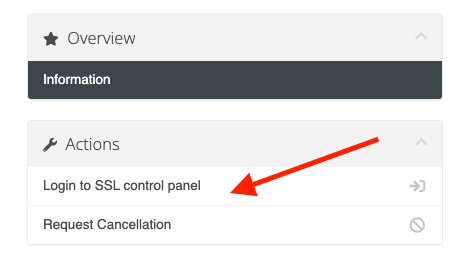
Choose the relevant SSL Certificate Service and click on the Active button under the Status column.

Under the Actions sidebar on the left, press Login to SSL control panel.
This will then open the SSL portal in a new tab. If this does not happen, please ensure you allow pop-ups and then try again.
Once in the SSL portal, choose the relevant SSL certificate order by pressing the arrow under the Actions column.
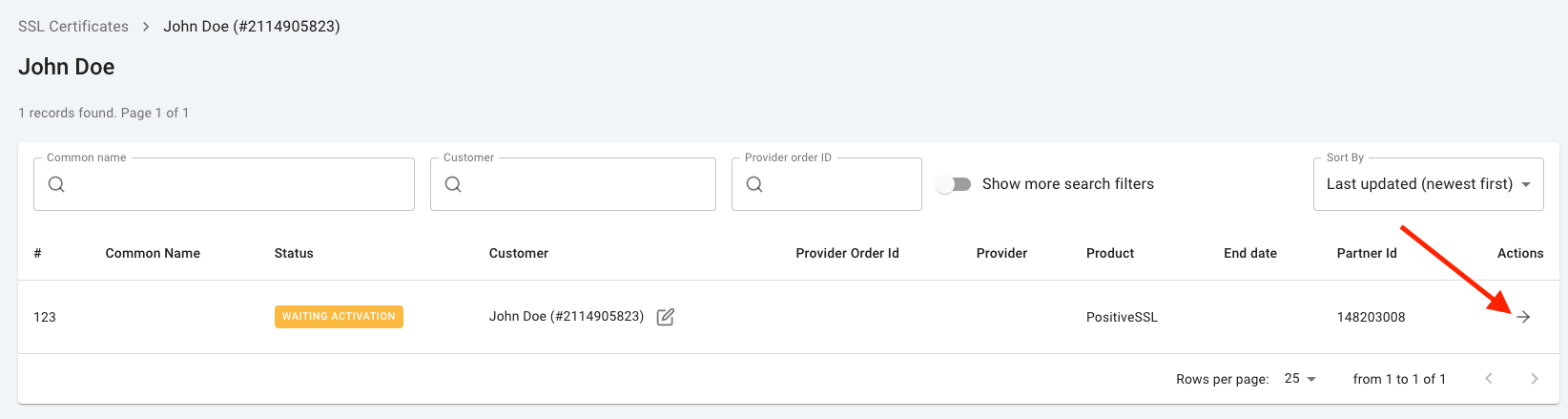
If you have multiple SSL certificates that you have not configured yet and are not sure which order relates to your service, the Partner ID in the portal is your Service ID in our client area.

If you already have a Certificate Signing Request (CSR), this can now be uploaded at this stage under the Insert Your CSR tab.
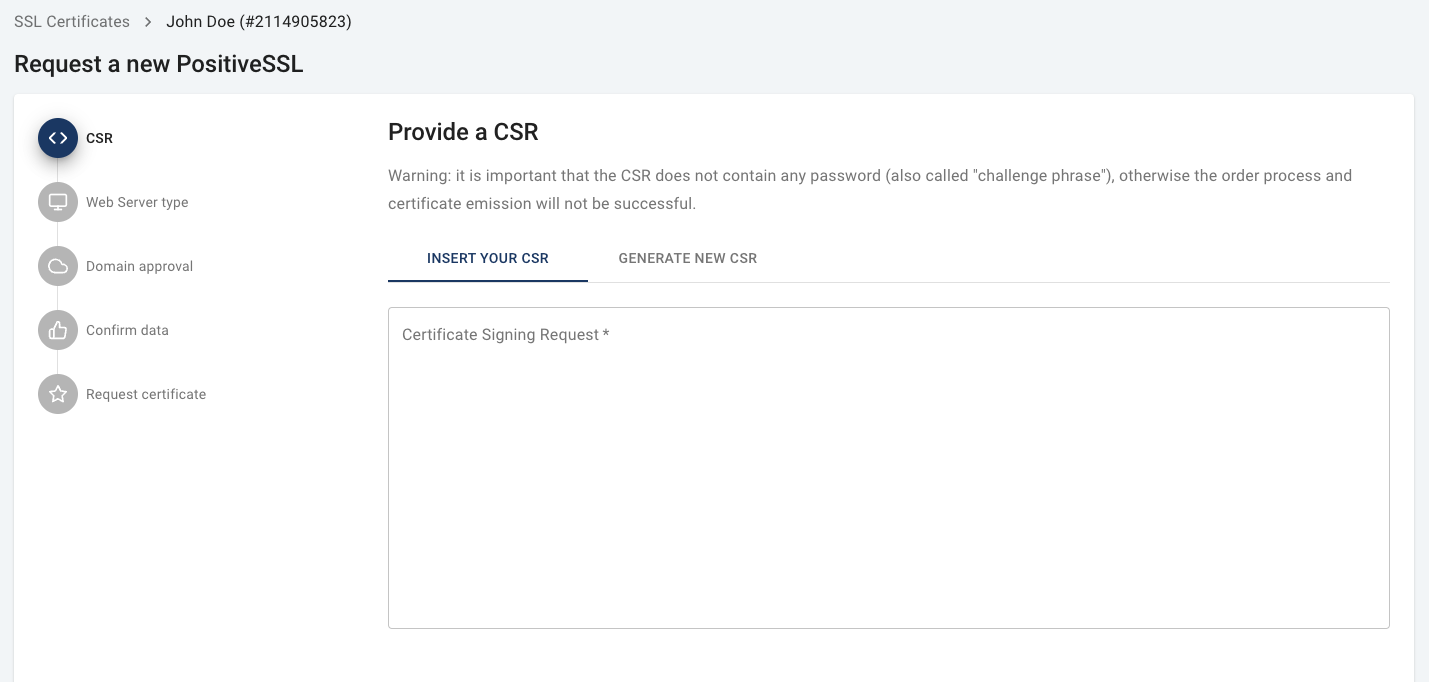
If you do not have a CSR, you can generate one under the Generate New CSR tab.
Simply fill in the relevant details, accept the terms and conditions and then press the Generate button.
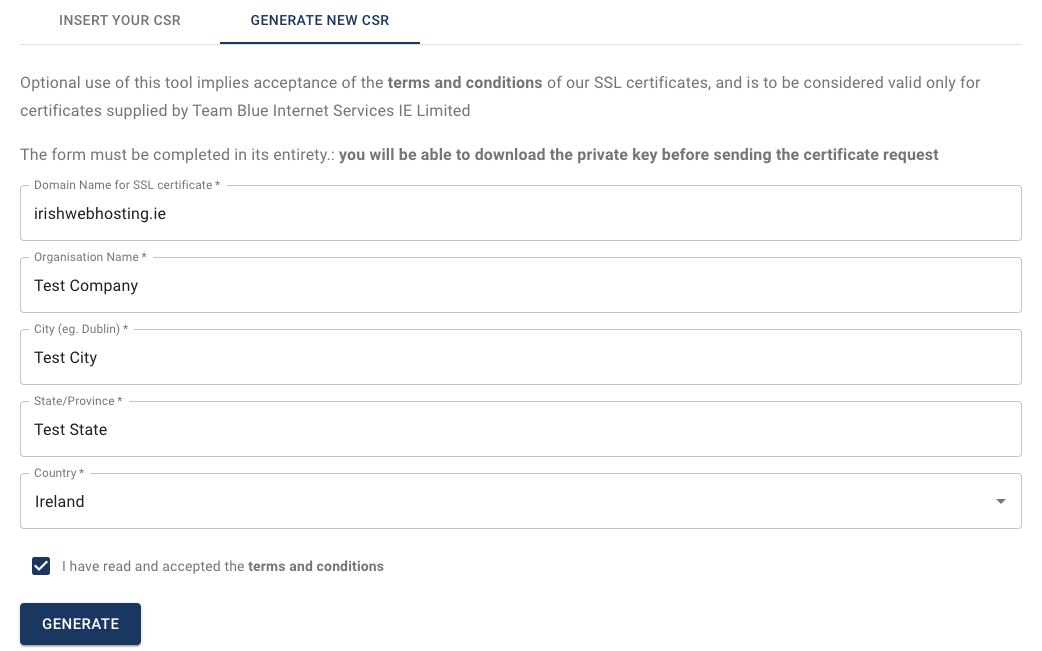
After pressing Generate, a confirmation of the details entered will appear. If you are happy with this, press the Next button to continue.
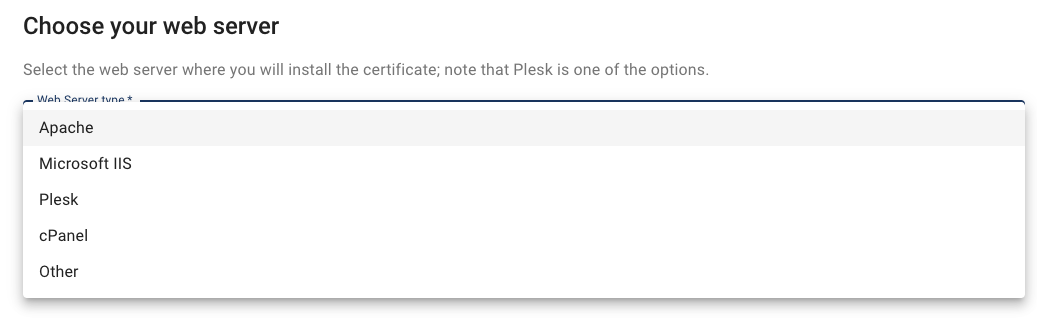
Next, choose your Web Server type. If you are not sure, simply select Other and then press Next to proceed.
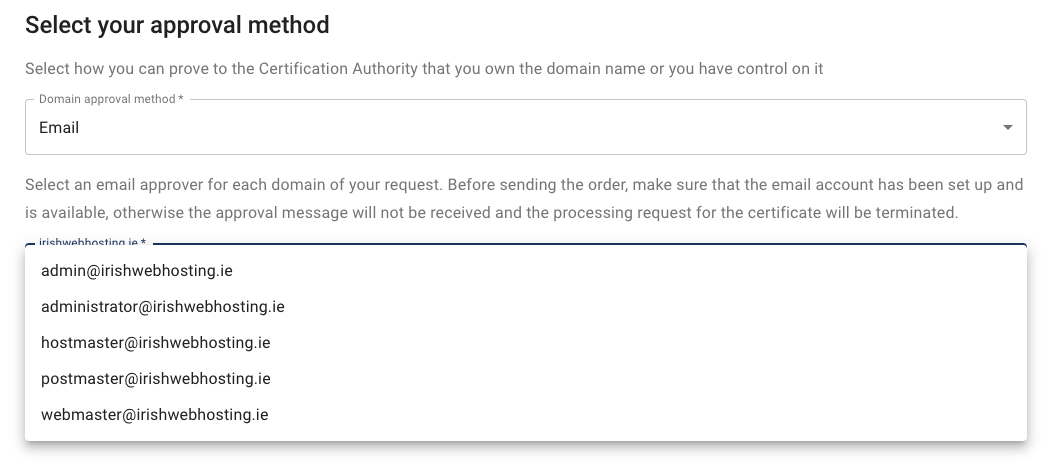
Next, select your approval method. This varies depending on the certificate you have ordered, however the most common approval methods are Email and DNS.
If you select email, you will be given a list of applicable email addresses where the approval can be sent to. You must select one of these emails. If none are suitable, please choose a different approval method.
If you select DNS, you will be given a unique CNAME record and value that you must add to your domain. These can also be downloaded if you plan on adding this record later.
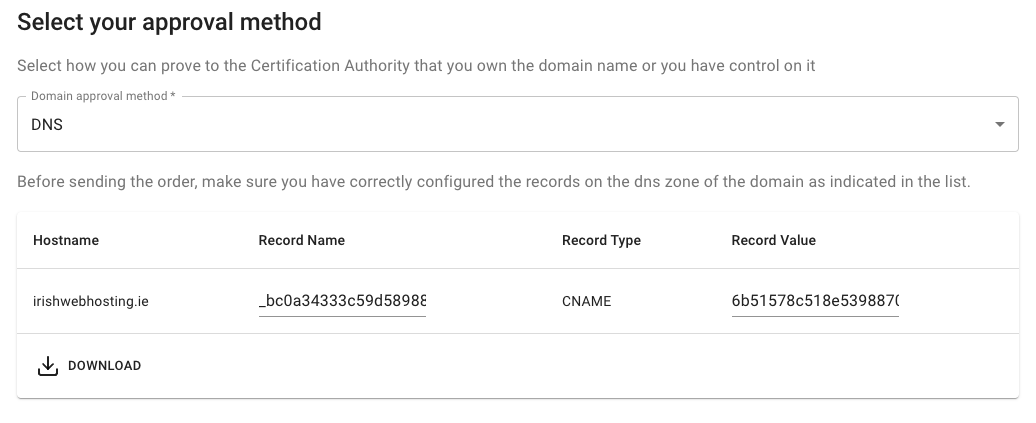
If you are in any way unsure on how to add this record, please reach out to your system administrator or web host for assistance.
Press Next to proceed.
If you have ordered an Extended Validation certificate, in the next step you must provide your organisation details.
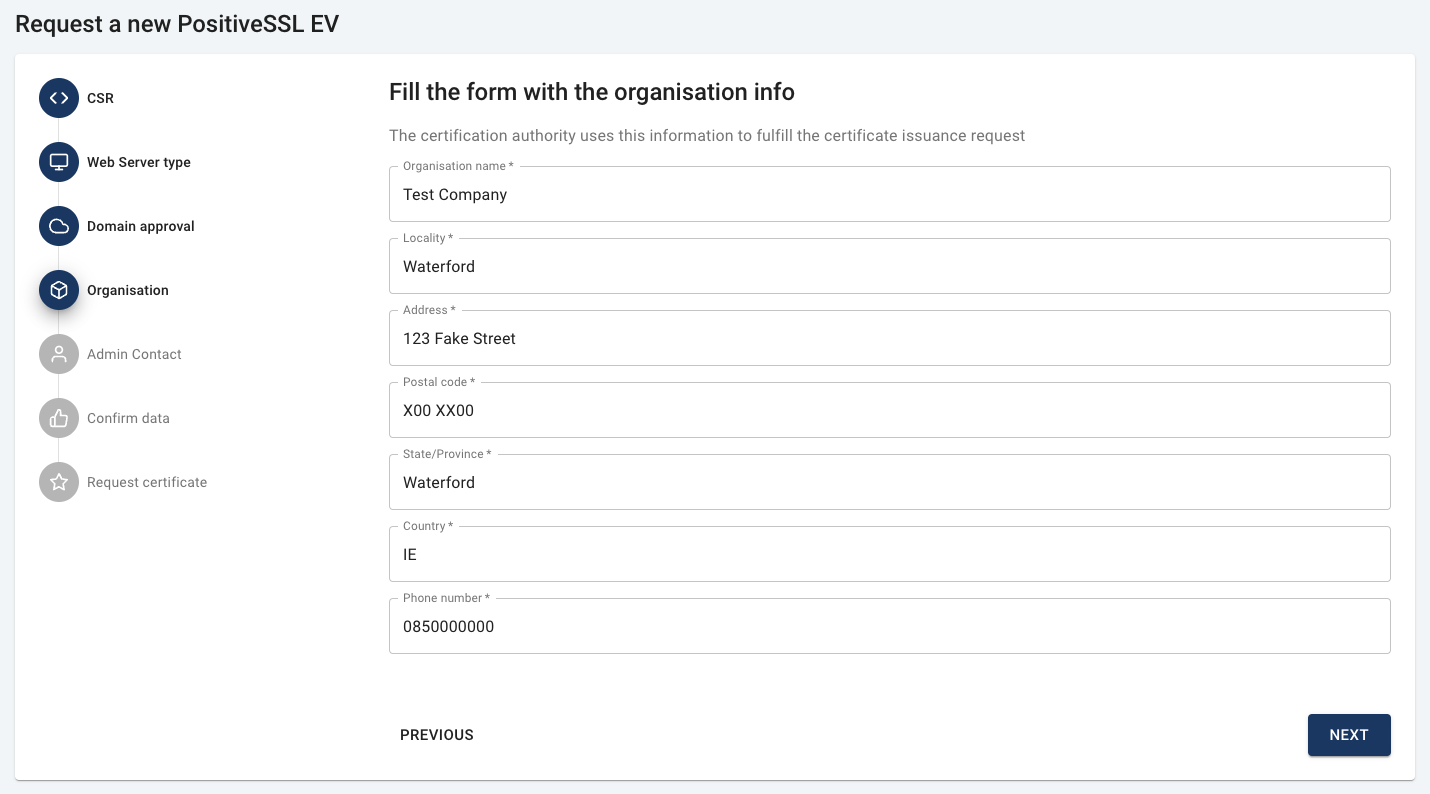
Press Next to provide your admin contact details.
Press Next to proceed.
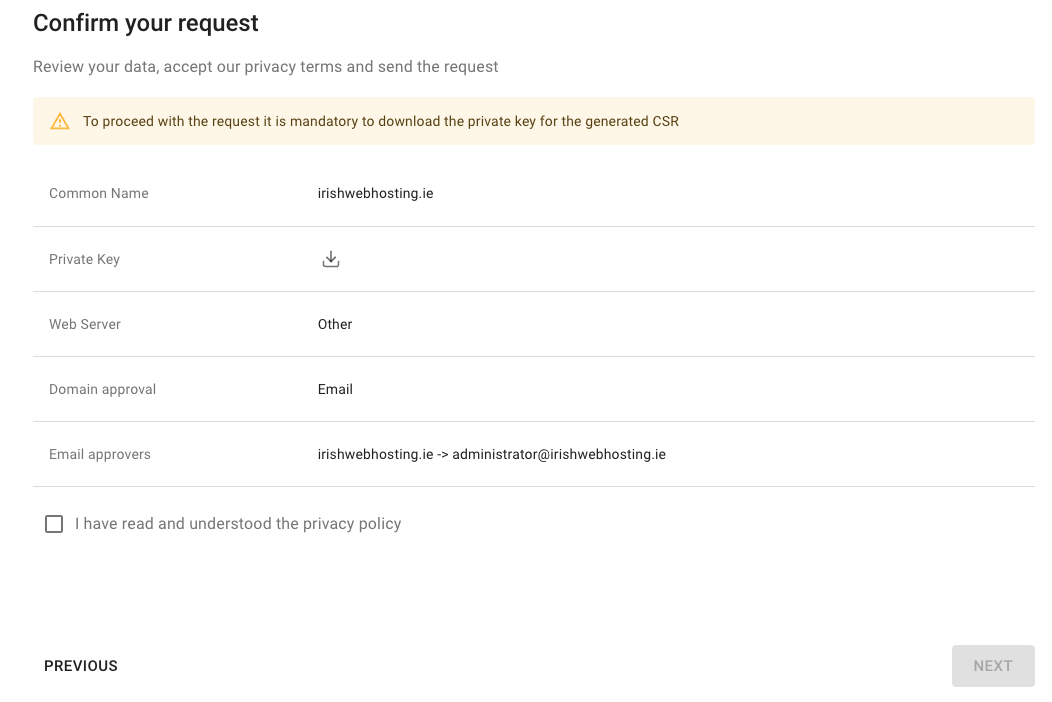
On the final screen, you will be given a summary of your request.
This includes:
- the domain name
- a download link to the private key (if you chose to generate the CSR through the portal)
- the web server type
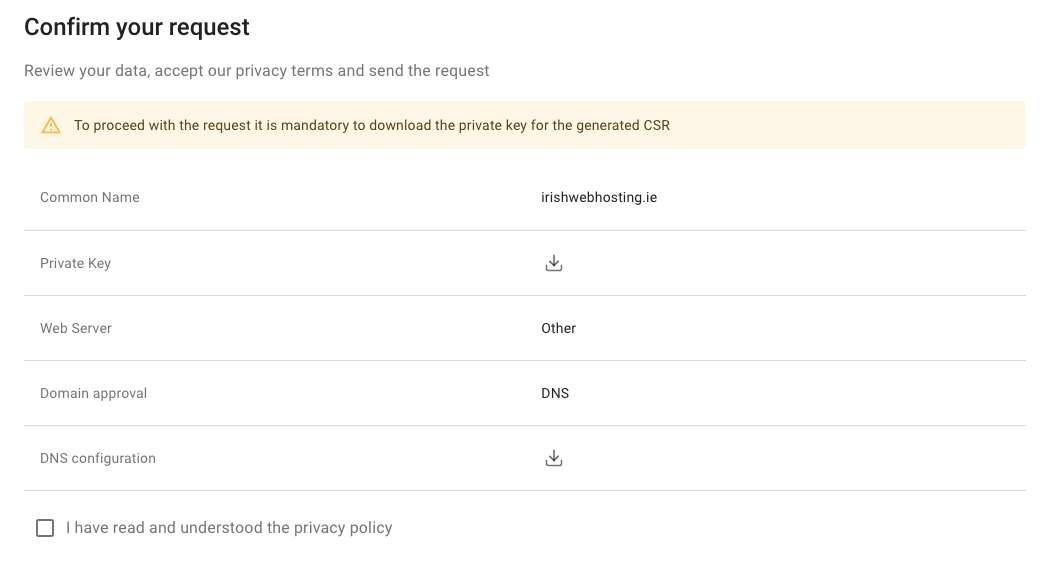
- the domain approval type and either a download link for the the DNS configuration (if you chose DNS as the approval type)
- the approval email (if you chose Email as the approval type)
If you chose email validation
If you chose DNS validation
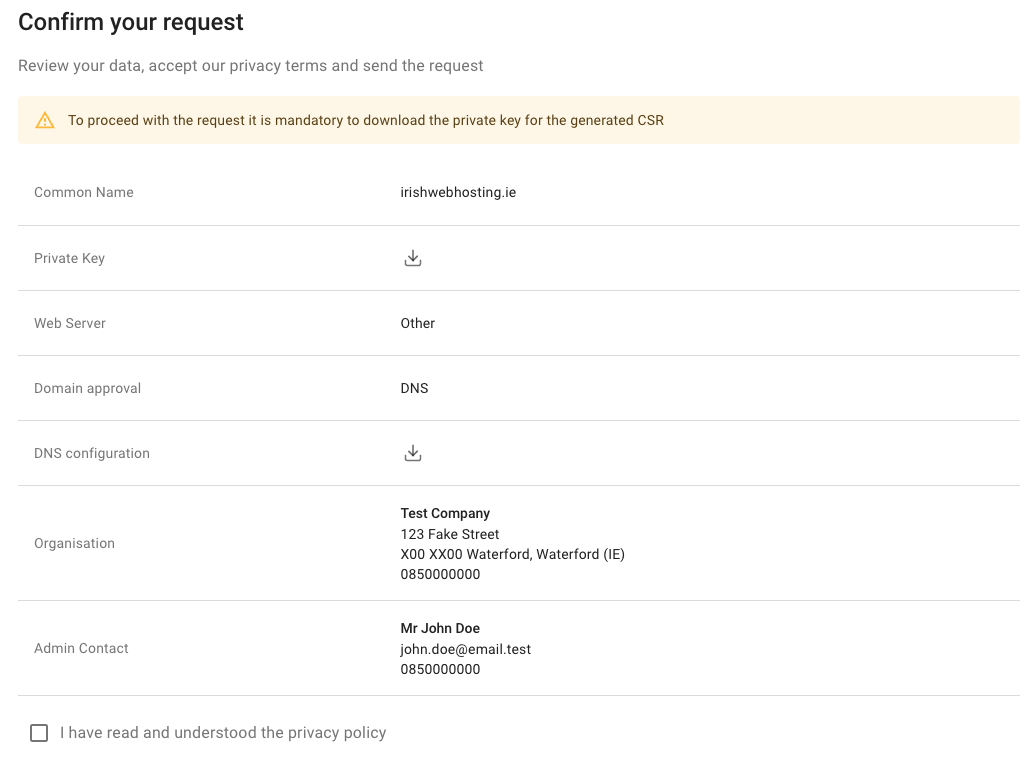
If you ordered an Extended Validation certificate, you will also see your organization and admin contact details below the DNS configuration or email approvers on this page.
If you generated the CSR through the portal, you must download the private key before proceeding which must be uploaded to the server where the SSL certificate is to be installed.
If you have difficulties with this, please reach out to your system administrator or web host for assistance.
Please confirm you have read and understood the privacy policy and press Next to proceed.
Your certificate request will then be processed and you will then be redirected to the Certificate Details page.
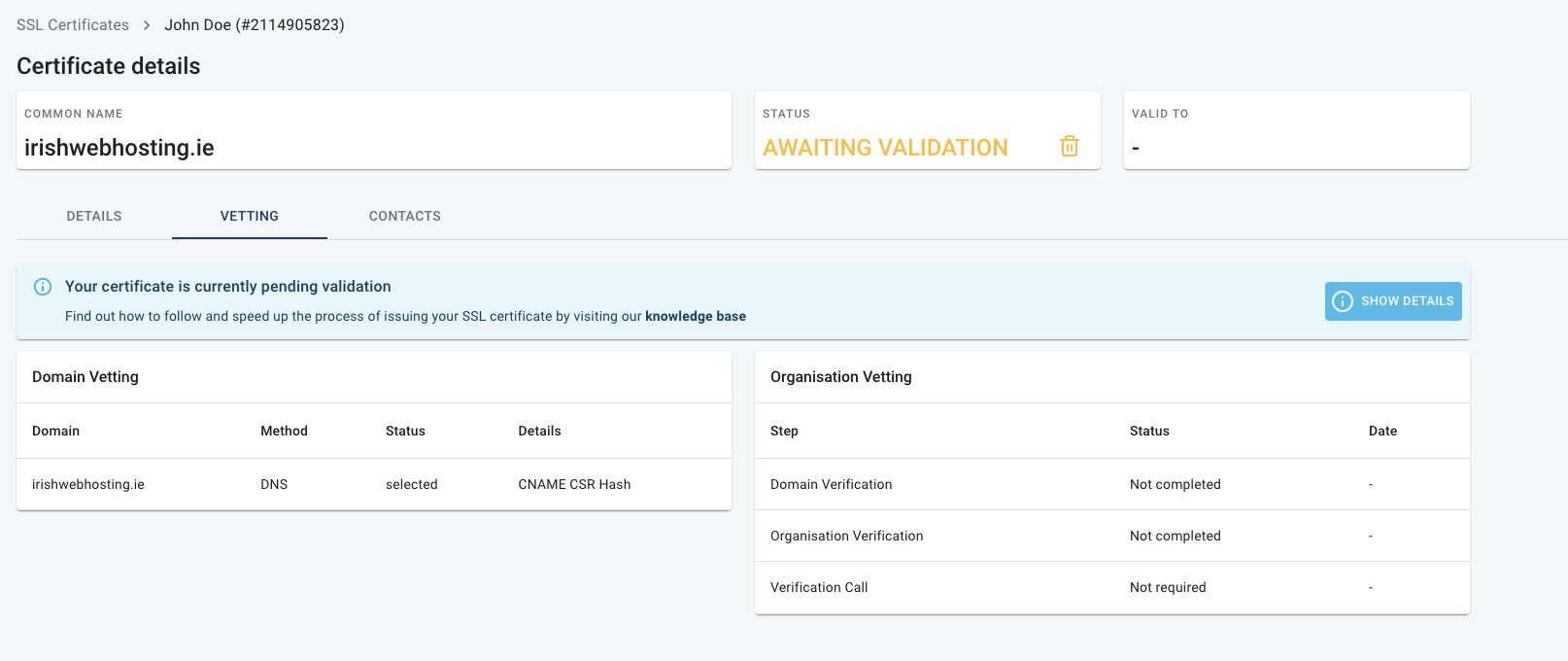
The status of this page updates every couple of minutes. You must now complete the validation steps (Email or DNS) if you have not done already.
- For DNS, please add the relevant records to your domain.
- For email, please follow the instructions that were sent in the email to the email address you chose.
Once completed, the status of this page will updated to Issued. If this does not happen, please click on the View Details button in the validation banner.
This will redirect you to the certificate providers website to check the status of the certificate.
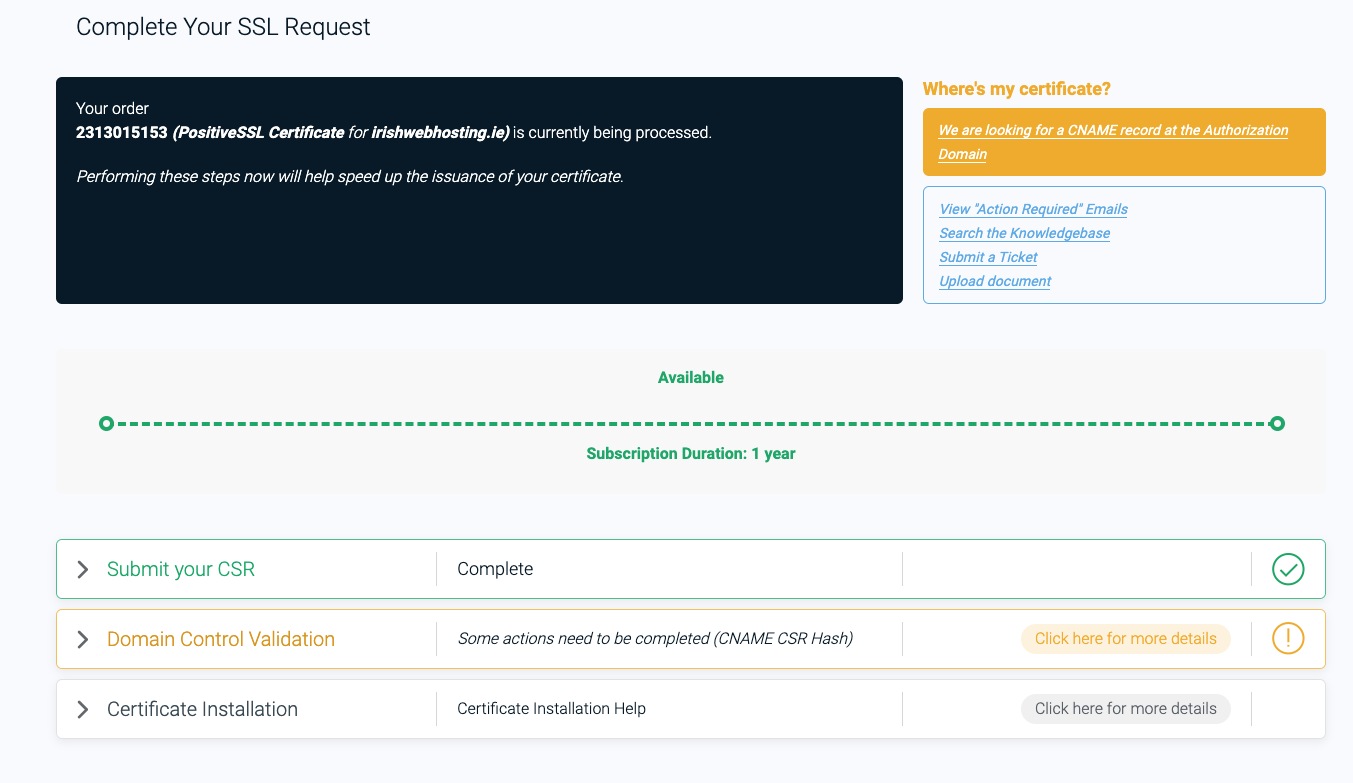
From here, you can request a re-check of the status to speed up the process or re-send the validation email if required.
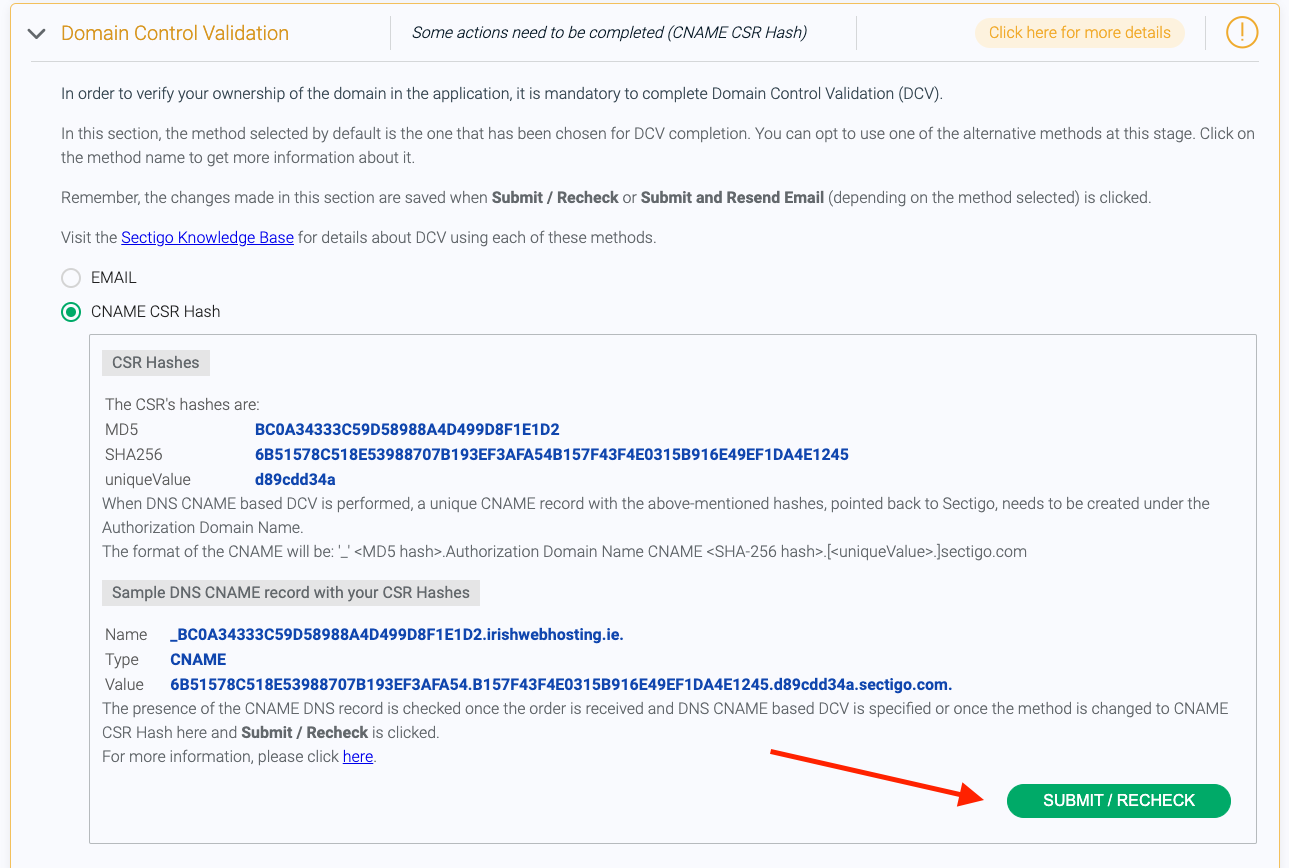
After submitting the re-check, you should then see the status update on the providers website.
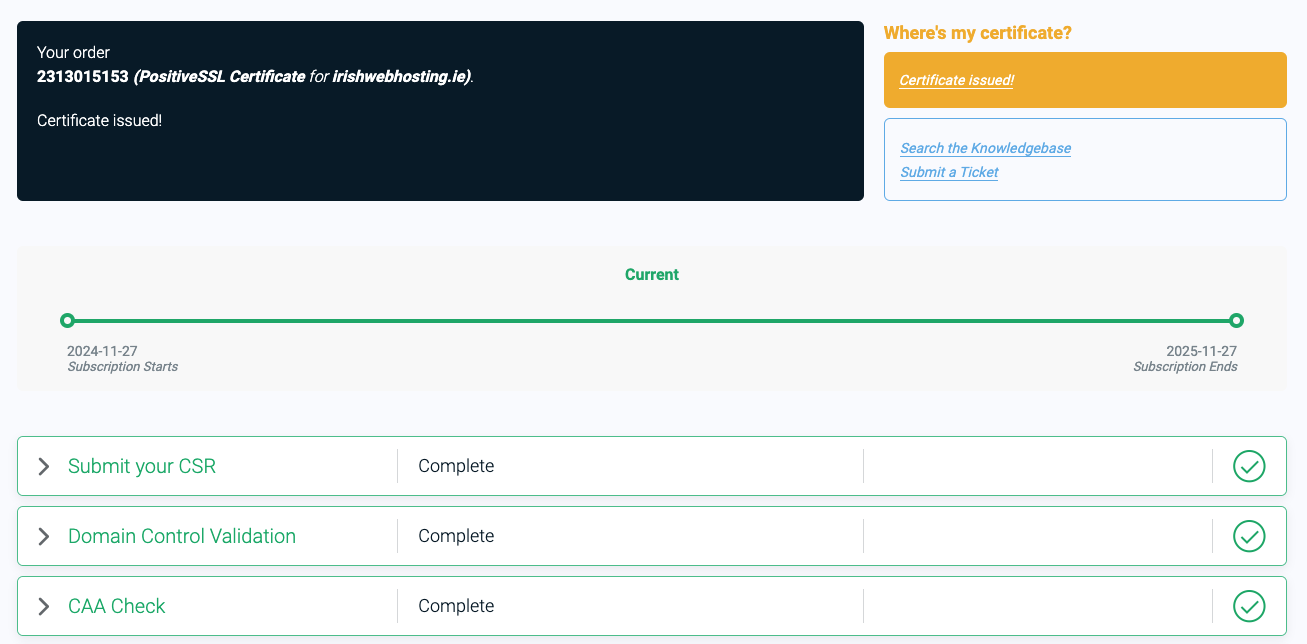
If you refresh the SSL portal, you will also see the status updated to Issued. You may now download or re-issue the certificate as required.
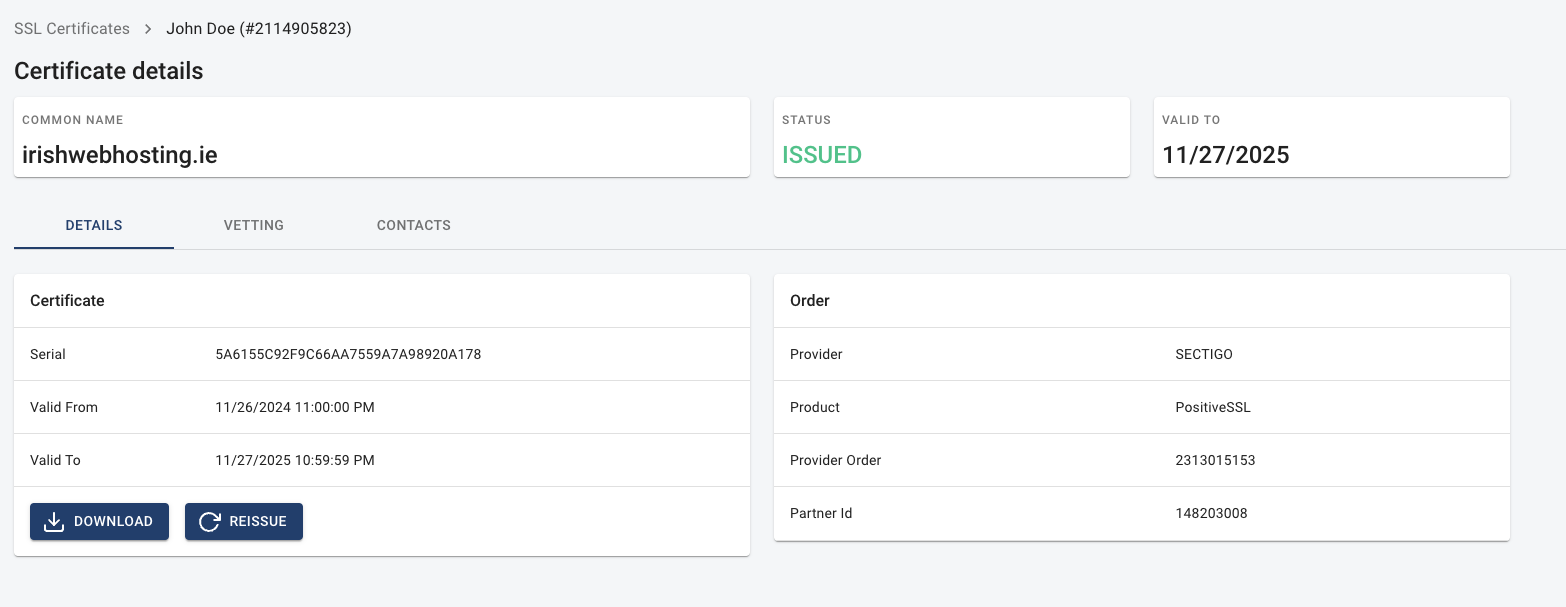
Please note that Extended Validation certificates will not be issued straight away and can take up to 7 business days as manual verification will be required by the certificate authority.

'%3e%3cg id='Final-Copy-2_2_' transform='translate(1275.000000, 200.000000)'%3e%3cpath class='st0' d='M7.4,12.8h6.8l3.1-11.6H7.4C4.2,1.2,1.6,3.8,1.6,7S4.2,12.8,7.4,12.8z'/%3e%3c/g%3e%3c/g%3e%3c/g%3e%3cg id='final---dec.11-2020'%3e%3cg id='_x30_208-our-toggle' transform='translate(-1275.000000, -200.000000)'%3e%3cg id='Final-Copy-2' transform='translate(1275.000000, 200.000000)'%3e%3cpath class='st1' d='M22.6,0H7.4c-3.9,0-7,3.1-7,7s3.1,7,7,7h15.2c3.9,0,7-3.1,7-7S26.4,0,22.6,0z M1.6,7c0-3.2,2.6-5.8,5.8-5.8 h9.9l-3.1,11.6H7.4C4.2,12.8,1.6,10.2,1.6,7z'/%3e%3cpath id='x' class='st2' d='M24.6,4c0.2,0.2,0.2,0.6,0,0.8l0,0L22.5,7l2.2,2.2c0.2,0.2,0.2,0.6,0,0.8c-0.2,0.2-0.6,0.2-0.8,0 l0,0l-2.2-2.2L19.5,10c-0.2,0.2-0.6,0.2-0.8,0c-0.2-0.2-0.2-0.6,0-0.8l0,0L20.8,7l-2.2-2.2c-0.2-0.2-0.2-0.6,0-0.8 c0.2-0.2,0.6-0.2,0.8,0l0,0l2.2,2.2L23.8,4C24,3.8,24.4,3.8,24.6,4z'/%3e%3cpath id='y' class='st3' d='M12.7,4.1c0.2,0.2,0.3,0.6,0.1,0.8l0,0L8.6,9.8C8.5,9.9,8.4,10,8.3,10c-0.2,0.1-0.5,0.1-0.7-0.1l0,0 L5.4,7.7c-0.2-0.2-0.2-0.6,0-0.8c0.2-0.2,0.6-0.2,0.8,0l0,0L8,8.6l3.8-4.5C12,3.9,12.4,3.9,12.7,4.1z'/%3e%3c/g%3e%3c/g%3e%3c/g%3e%3c/g%3e%3c/svg%3e) Your Privacy Choices
Your Privacy Choices